

Initial Setup
Set up your first virtual API key.
Initial Setup
This guide creates the minimum working Odock configuration for one organisation:
- one active provider
- one encrypted provider key
- three configured models
- one virtual API key with model access
The example uses OpenAI with three GPT-4.1 models: gpt-4.1, gpt-4.1-mini, and gpt-4.1-nano. The same flow applies to other providers.
Before You Start
You need access to an organisation in Odock.ai and a provider API key from the upstream provider. For this example, use an OpenAI API key.
Keep the two key types separate:
- The provider API key is the upstream OpenAI secret. Odock encrypts it and uses it only when forwarding requests to OpenAI.
- The virtual API key is the Odock key your applications use when calling the Odock gateway.
Setup Steps
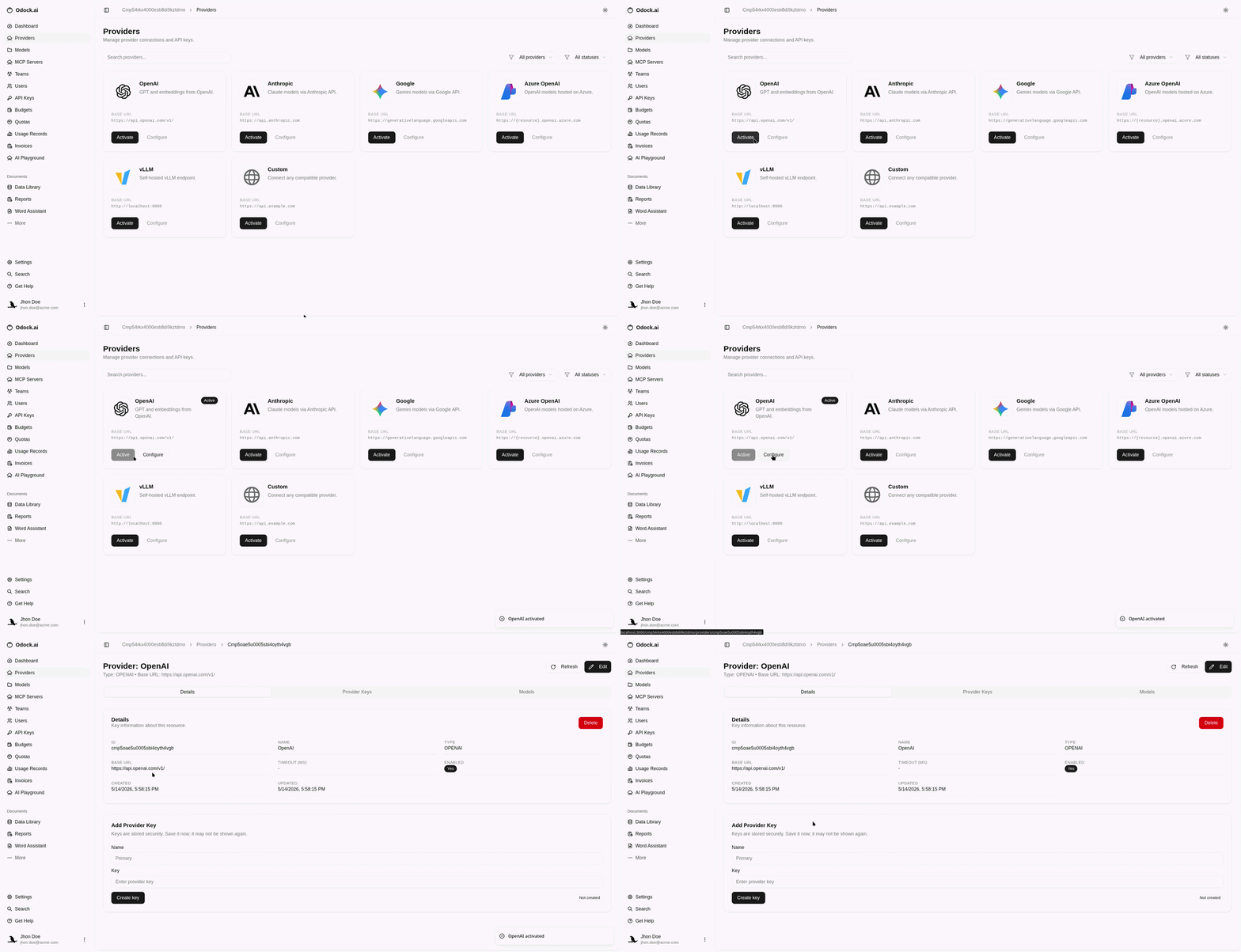
Activate the Provider
Open the organisation Providers page.
Find the OpenAI provider card and click Activate. Odock will add the OpenAI provider with the default OpenAI base api URL.
After activation, click Configure on the OpenAI card. This opens the provider detail page where you can add the upstream key.
Add a Provider Key
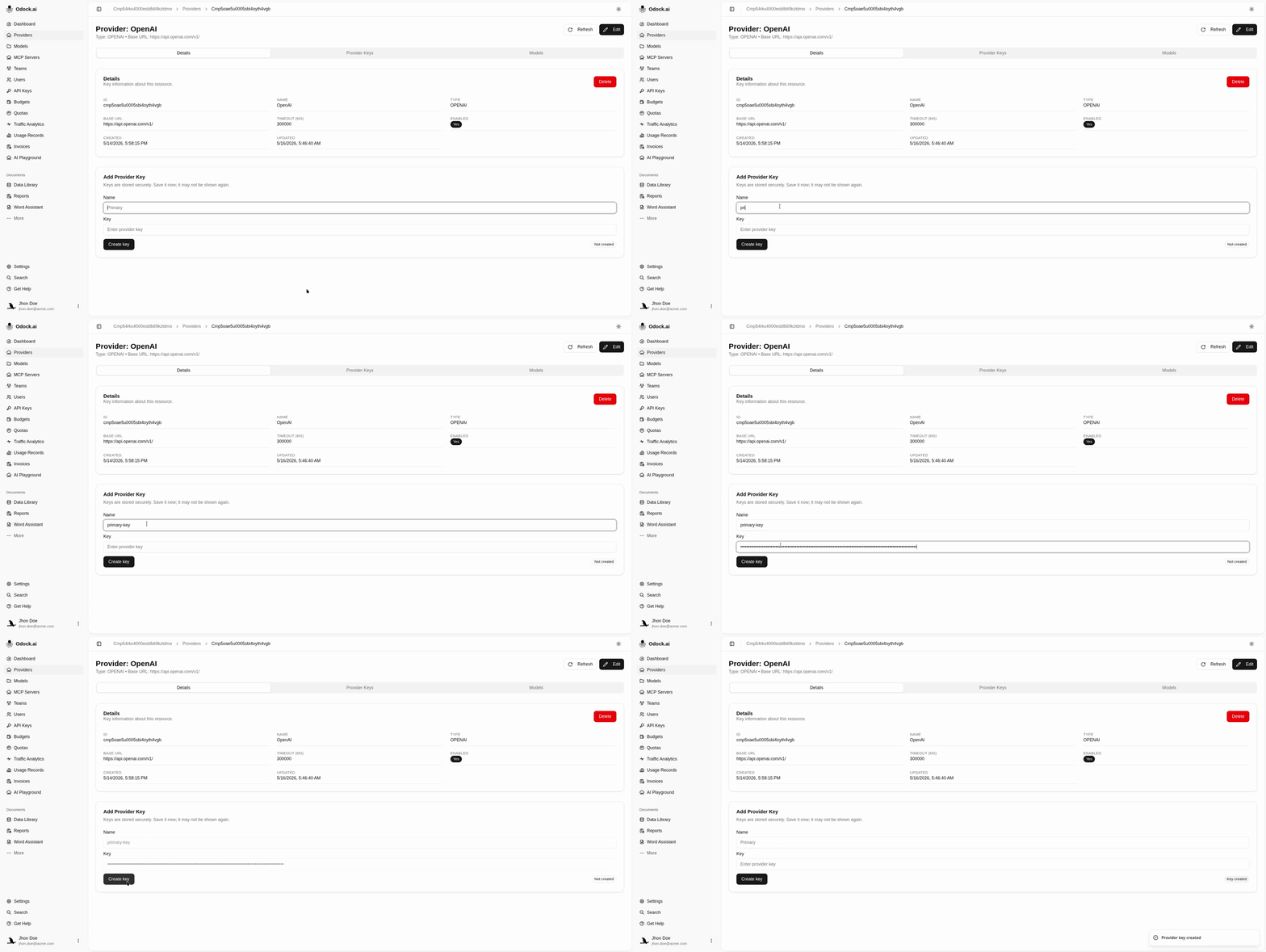
On the OpenAI provider detail page, find the Add Provider Key card.
Fill in:
- Name: a short label such as
Primary. - Key: the OpenAI API key from your OpenAI account.
Click Create key.
Odock encrypts the provider key before storing it in the vault. The full provider key is not shown again in the UI. At request time, odock-server decrypts it in memory only long enough to call the upstream provider.
Add Models From the Catalog
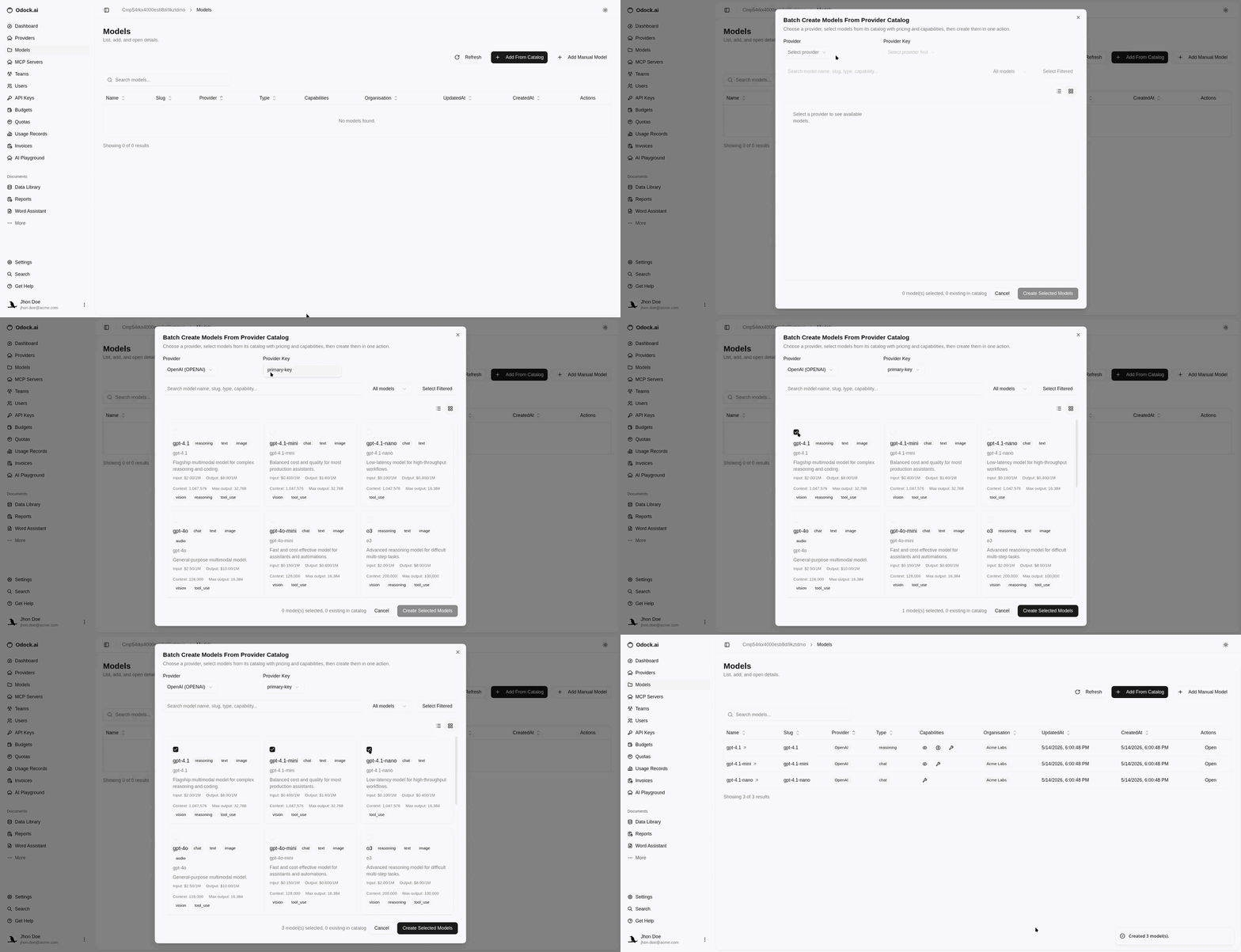
Open the organisation Models page.
Click Add From Catalog. In the Batch Create Models From Provider Catalog dialog:
- Select the OpenAI provider.
- Select the provider key you created in the previous step.
- Search or filter the catalog for
gpt-4.1. - Select the
gpt-4.1,gpt-4.1-mini, andgpt-4.1-nano. - Click Create Selected Models.
Odock creates organisation model records that map the model names clients will request to the OpenAI provider and the encrypted provider key.
Create a Virtual API Key
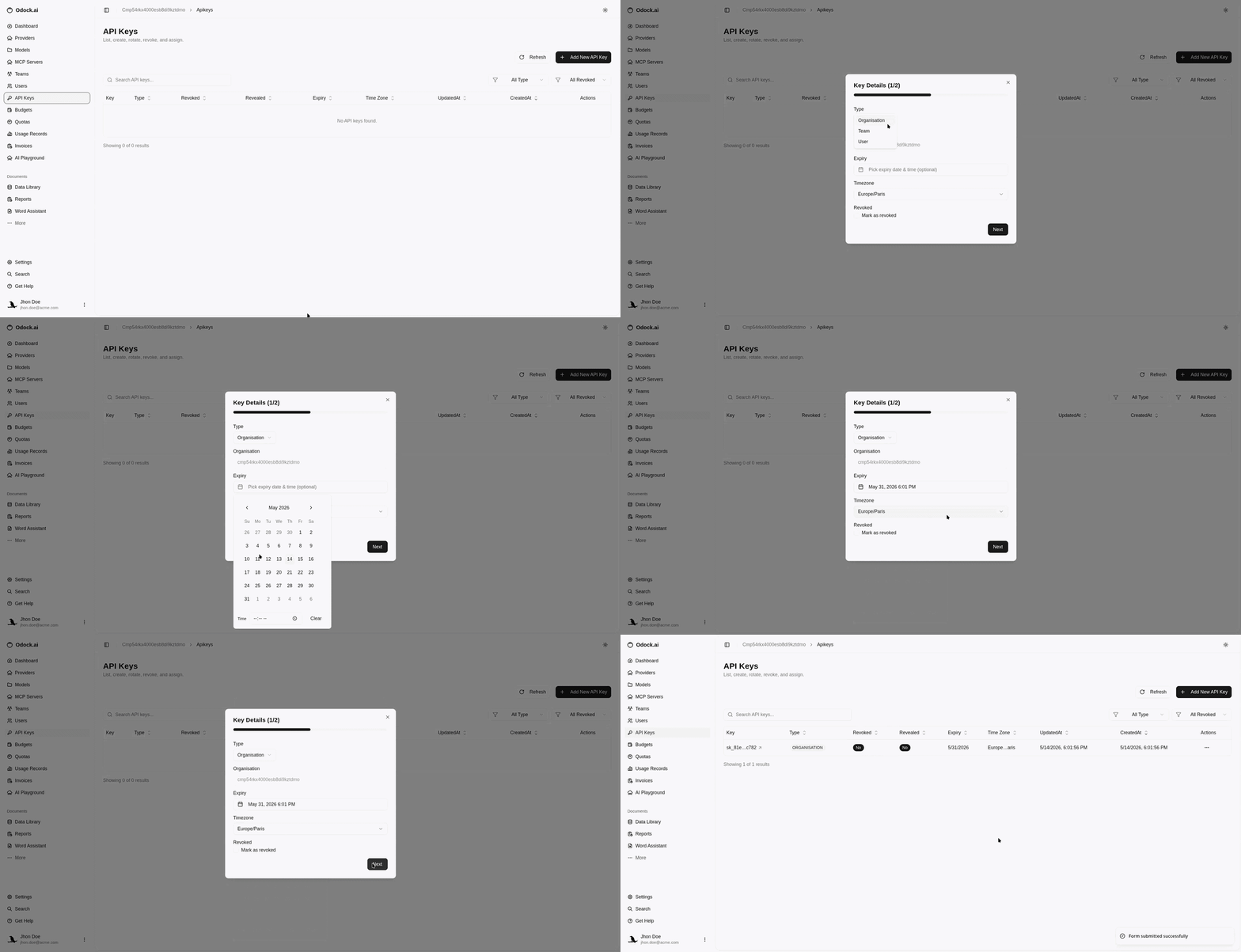
Open the organisation API Keys page.
Click Add New API Key and fill in the key details:
- Type: choose Organisation for this first setup.
- Expiry: optional. Set one if you want the key to stop working after a specific date and time.
- Timezone: choose the timezone used to interpret the expiry.
Click Next, then submit the form with Create API Key.
The key now exists, but it cannot call any models until you grant model access.
Grant Model Access
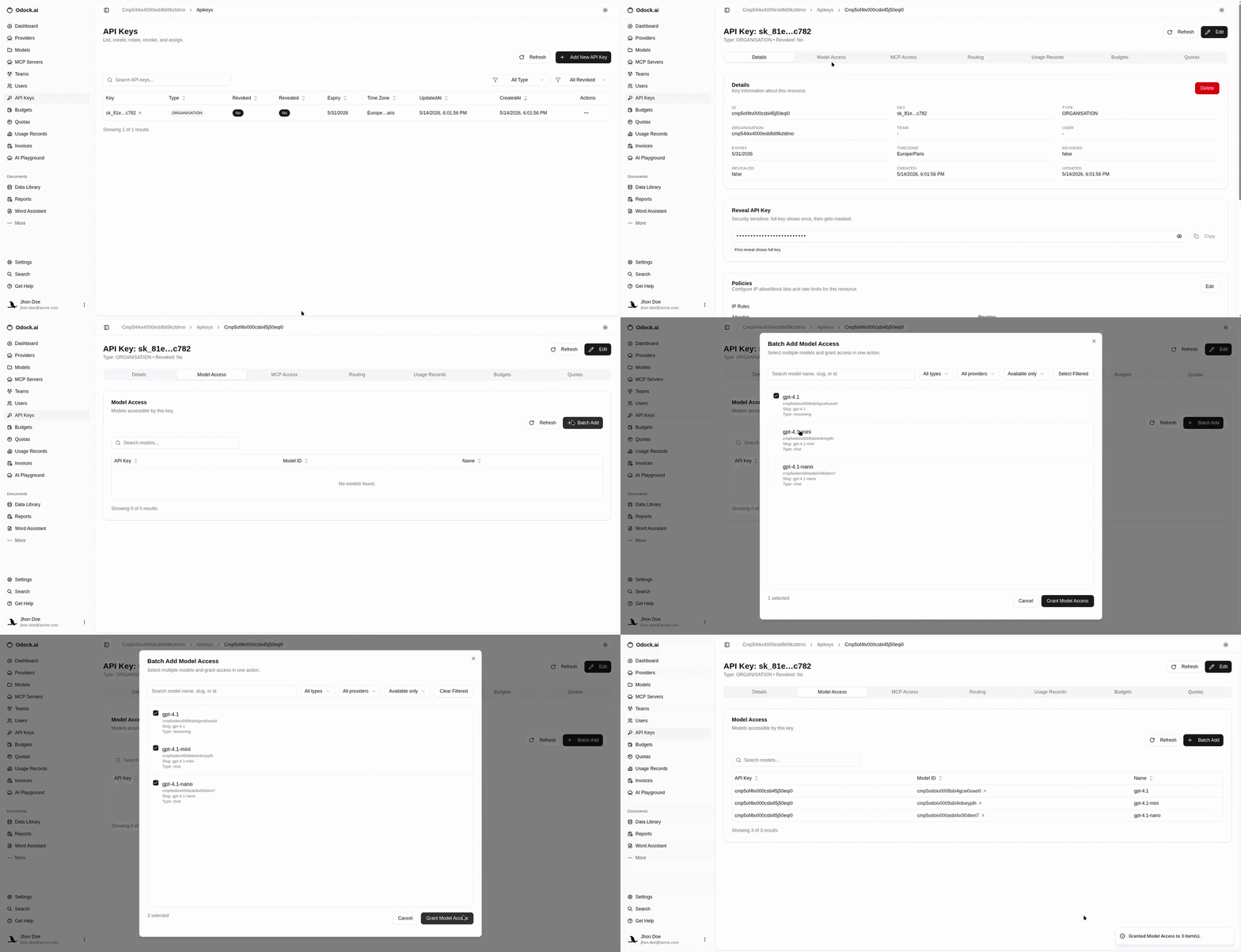
Open the newly created API key.
Go to the Model Access tab and click Batch Add. Use the filters or search field to find the OpenAI GPT-4.1 models you created, select all three, and click Grant Model Access.
This creates the runtime access grants between the virtual API key and the selected models. Without these grants, requests using the virtual key are rejected even if the models exist.
Reveal and Copy the Virtual API Key
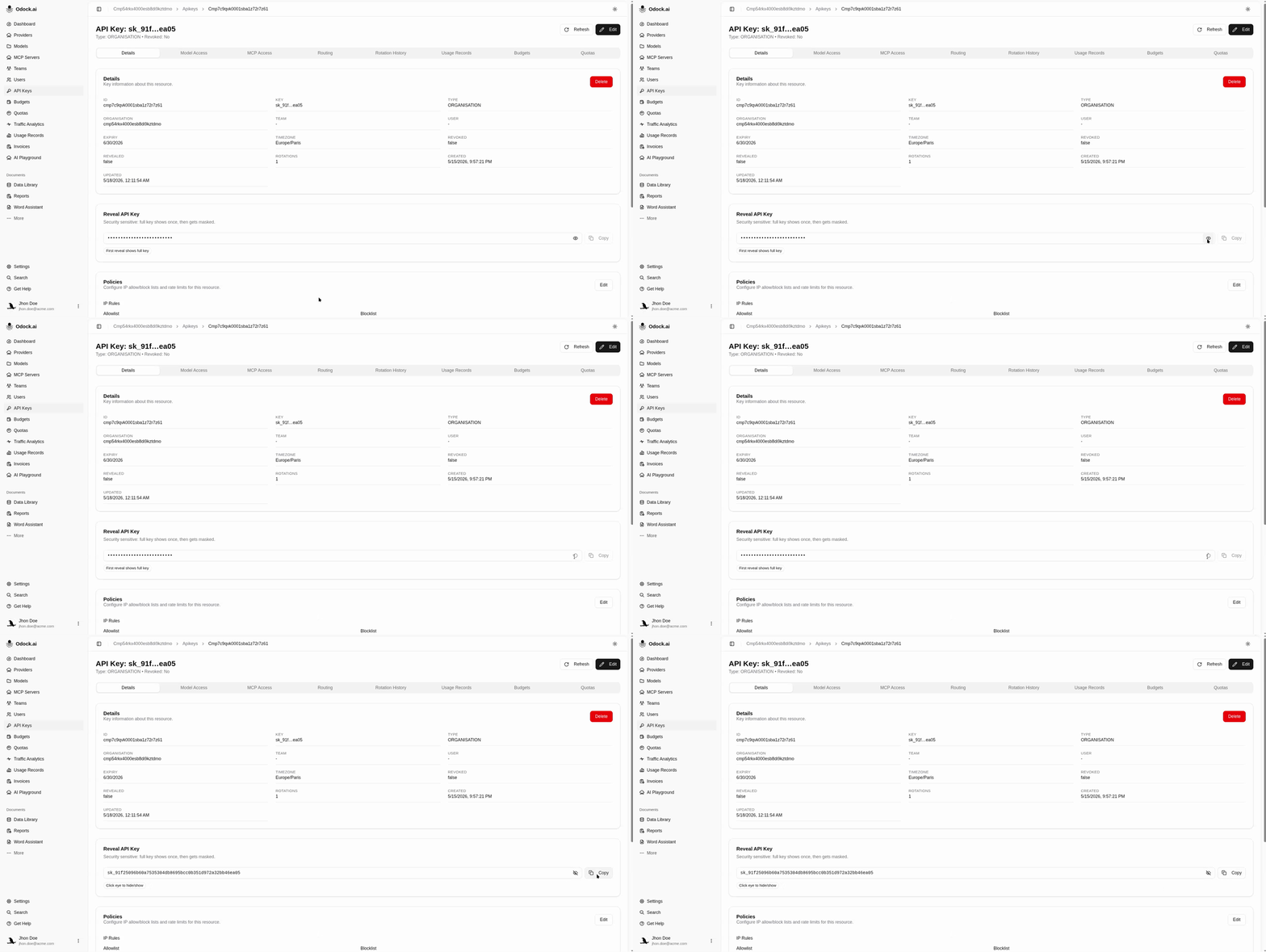
Return to the Details tab of the API key.
In the Reveal API Key card, click the eye icon to reveal the full virtual API key. Click Copy, then store the key in your secret manager or local environment.
The full virtual API key is shown only once. After it has been revealed, Odock permanently masks it in the UI.
Ready for the First Request
You now have a virtual API key that can call the selected GPT-4.1 models through Odock.
Continue with Quick Start to use the key in an OpenAI-compatible gateway request.