

Flow Studio
Design multi-step automation as a visual or YAML node graph across the gateway lifecycle, without writing a custom plugin.
Flow Studio
Flow Studio is a visual and YAML automation builder for the same lifecycle moments plugins use. Instead of writing a custom plugin for conditional logic, routing, or multi-step integrations, build a flow: a node graph of conditions, branches, loops, and actions that runs in the gateway request path.
Flows sit beside the plugin engine, not in place of it. A flow can call an activated marketplace or built-in plugin, and flows are ordered with plugin lanes through Execution Lanes.
The Library Model
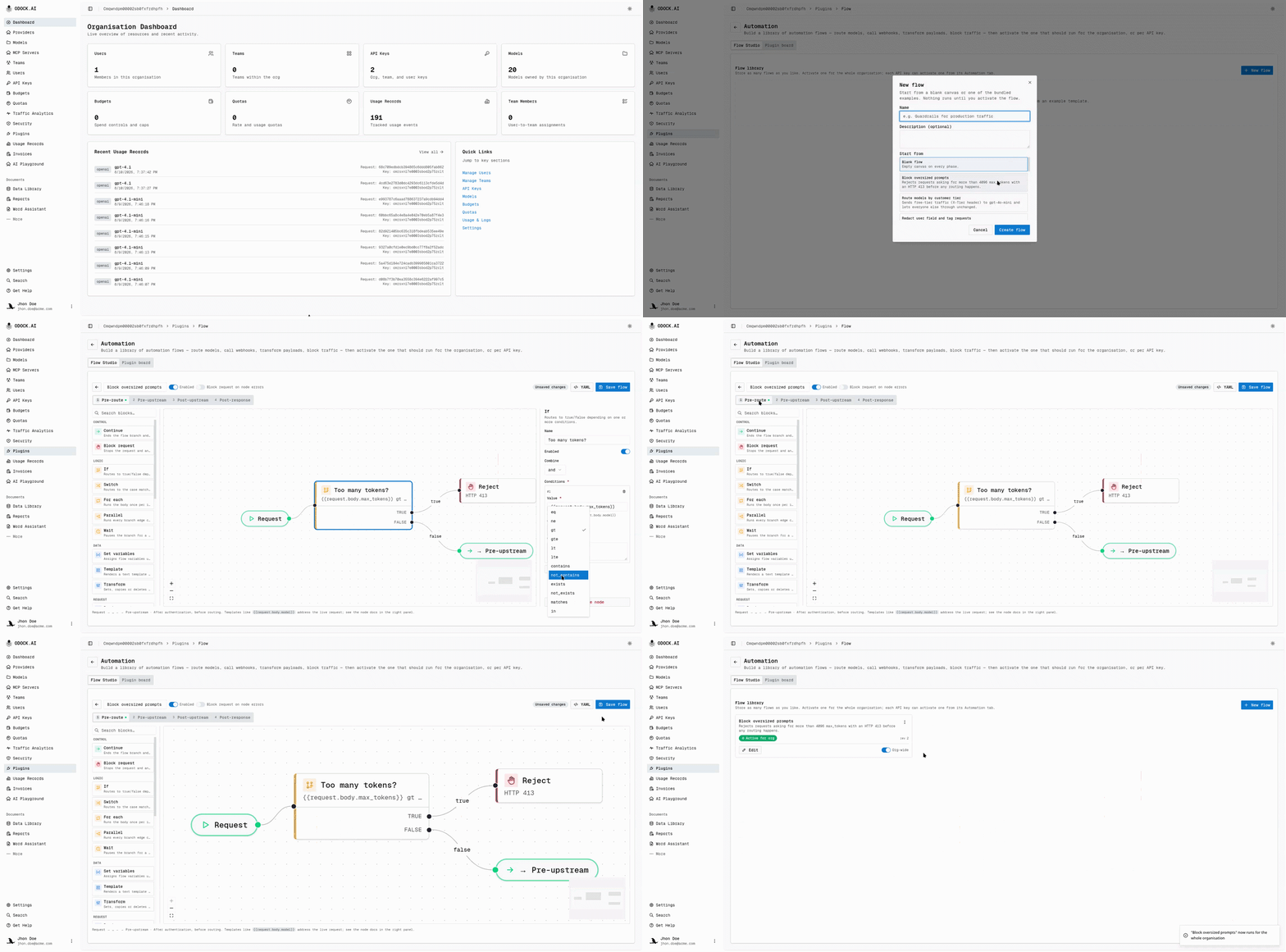
Flows live in an organisation-level flow library. Create, duplicate, edit, and delete any number of flows. None run until activated.
- Organisation-wide — exactly one flow can be the active organisation flow at a time. It runs for every API key in the organisation that does not override it.
- Per API key — each API key can independently activate one flow from the library on its own Automation tab. A single library flow can be activated on many keys at once.
This separates authoring from rollout: build in the library, then activate organisation-wide or pilot on one key.
Why Use A Flow Instead Of A Plugin
| Need | Best fit |
|---|---|
| One clear, reusable, deployment-specific behavior (export to a SIEM, call one integration) | Plugin |
| Conditional logic: "if the model is X and the caller is not tier Y, then…" | Flow |
| Multi-step behavior: check a condition, call an external service, then branch again | Flow |
| Routing decisions based on request content, headers, or metadata | Flow |
| Looping over parts of a request (for example, each message) | Flow |
| Combining several plugins and custom logic into one visible, ordered pipeline | Flow |
| Behavior your security or platform team needs to review as source code, not a canvas | Plugin (Request A Custom Plugin) |
Flows and plugins can work together. Use Run Plugin to invoke an already activated plugin, then let the flow decide when it runs and with which data.
Where
| Location | Who | What |
|---|---|---|
/{organisation}/plugins/flow → Flow Studio tab | All org roles view; ORG_ADMIN edits | The flow library: create, duplicate, delete flows, and switch the organisation-wide active flow. The legacy ordered board remains available as Plugin board. |
| API key detail page → Automation tab | Key owner per RBAC (admins any key, managers their team/own keys, users their own keys) | Activate one library flow for that key, or clear the activation. |
The Four Lifecycle Phases
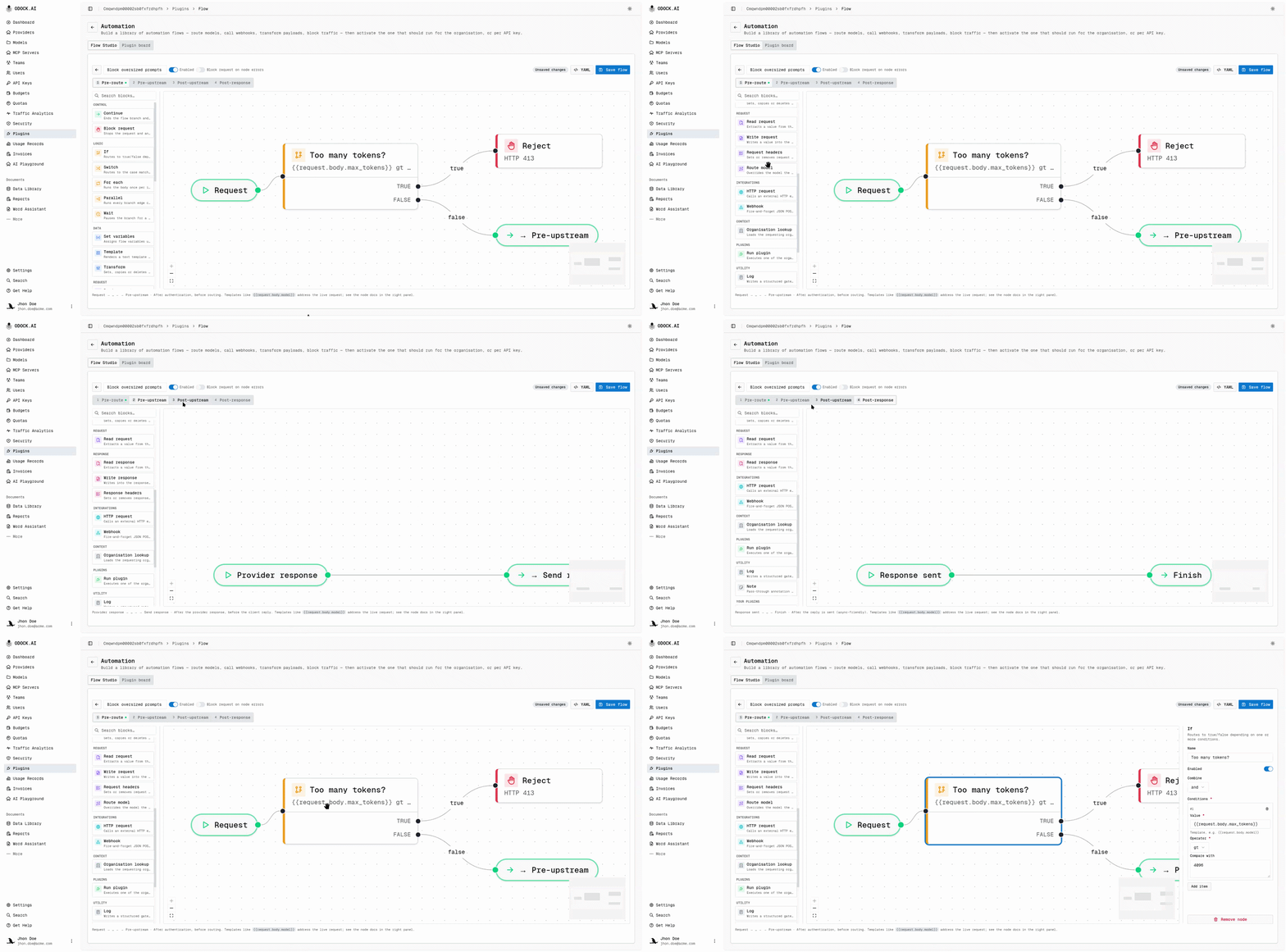
A flow document can hold four graphs, one per lifecycle phase. It runs only in phases where the canvas has nodes beyond the starting point.
| Phase | Runs | What the graph can still do |
|---|---|---|
| Pre-route | Before model routing, budget, and safety checks | Rewrite the request body, change the target model, set metadata or headers, or block |
| Pre-upstream | Immediately before the provider or MCP call | Last edits before the request leaves Odock |
| Post-upstream | After the provider or MCP response, before the reply reaches the caller | Rewrite the response body, status, or headers |
| Post-response | After the reply has already been sent (async by default) | Audit, notify, or bridge to another system — it cannot change what the caller received |
For how these four phases relate to plugin lifecycle moments and lanes, see Flow Studio: Execution Order.
Section Guide
- Building Blocks: the node categories available in the canvas, and the safety limits every flow runs under.
- Execution Order: how a flow's graphs combine with plugin lanes and other flows at the same phase.
- Tutorials: step-by-step guides to building, activating, and reading a flow.
- Testing & Verification: how to validate a flow before saving it, and how to confirm it behaved as expected in production.