

AI Playground
Test an organisation model from the UI with a selected API key.
AI Playground
The AI Playground lets organisation users test models from the UI before using them in an application.
Most actions happen only in the UI: choosing an API key, choosing a model, writing a prompt, changing response mode, and clearing the conversation. The runtime gateway is only contacted when you test the connection or send a message.
Before You Start
You need an active API key with access to at least one model.
The model must be configured and available for your organisation.
The gateway URL must be reachable. For local setups, this is usually http://localhost:8080.
Send A Test Message
Open your organisation workspace.
Open AI Playground from the sidebar.
Select the API key you want to test with.
Enter the Gateway URL.
Click Test connection.
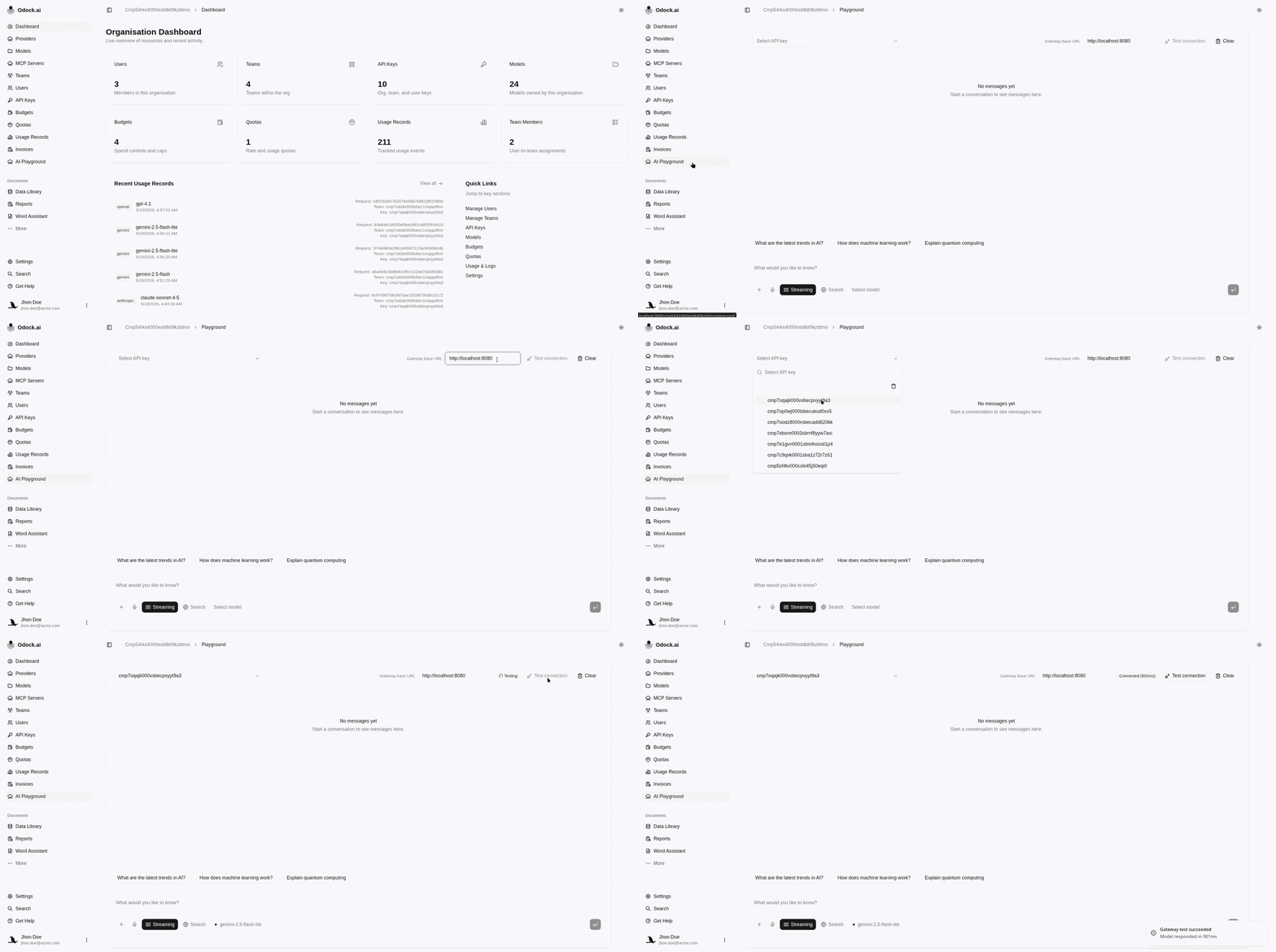
Open the model selector.
Choose a model.
Only models available to the selected API key are shown.
Choose Streaming or Unary response mode.
Write a prompt.
Read the response in the conversation.
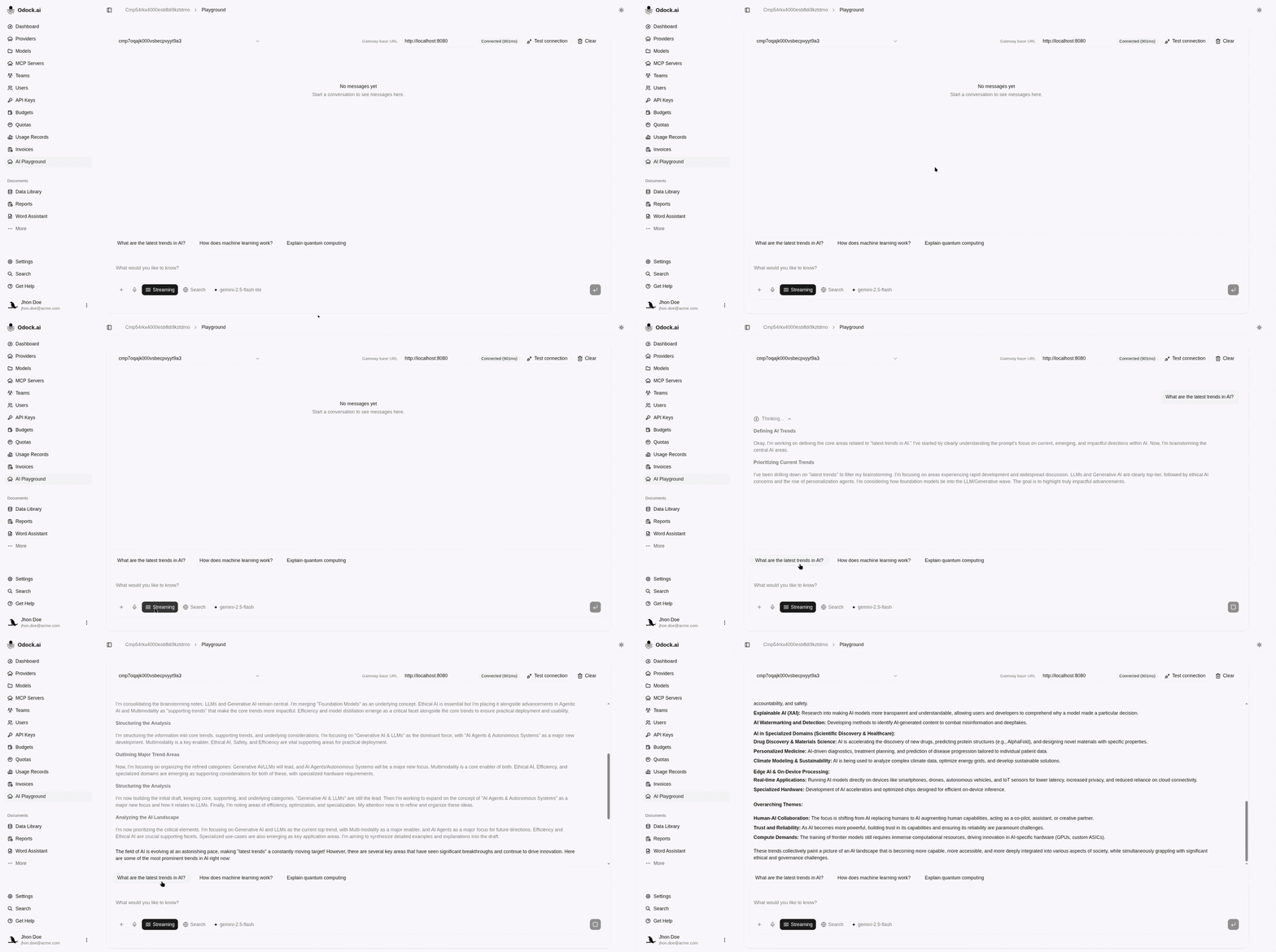
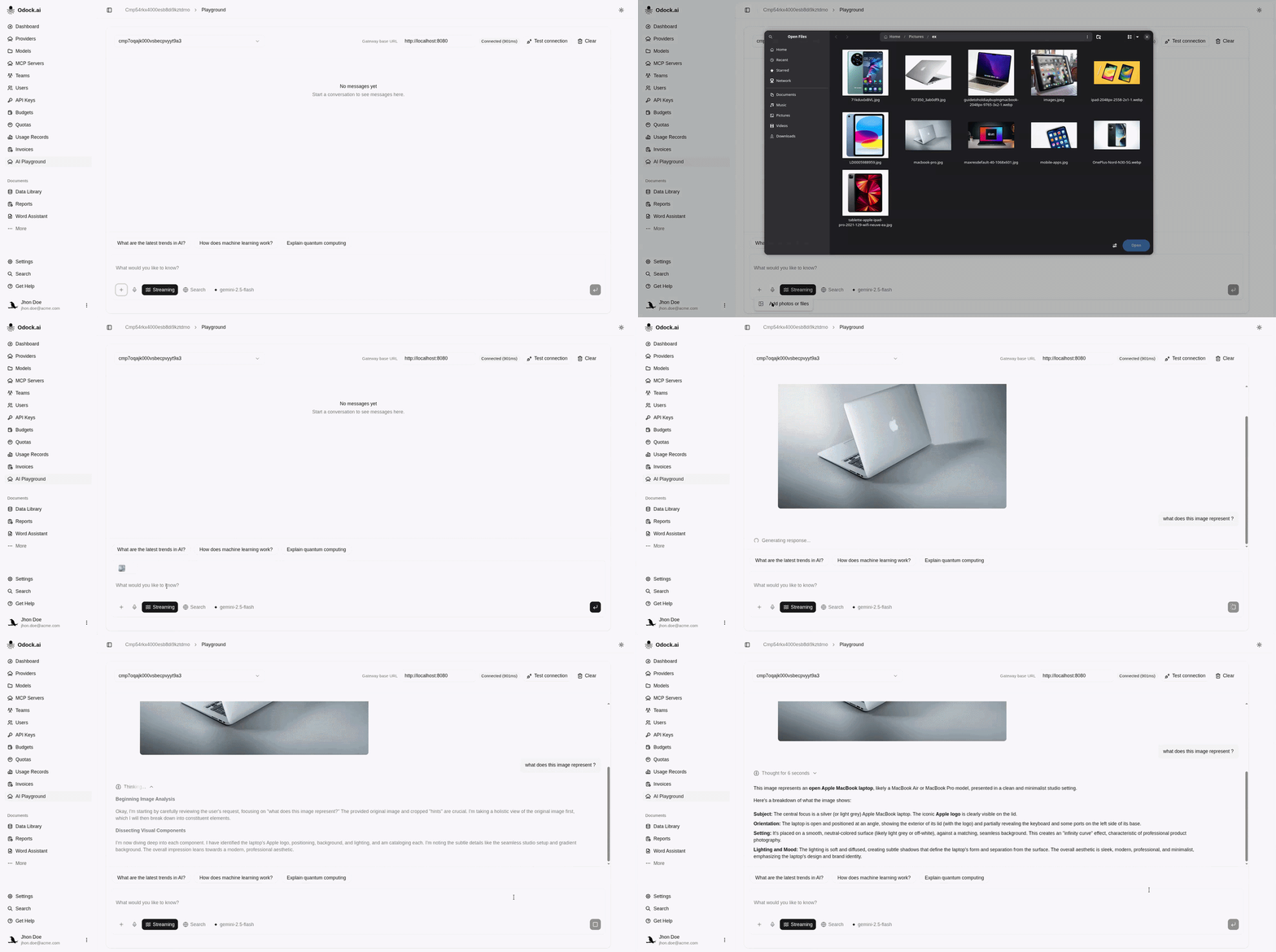
Optional: add an attachment.
Send the message.
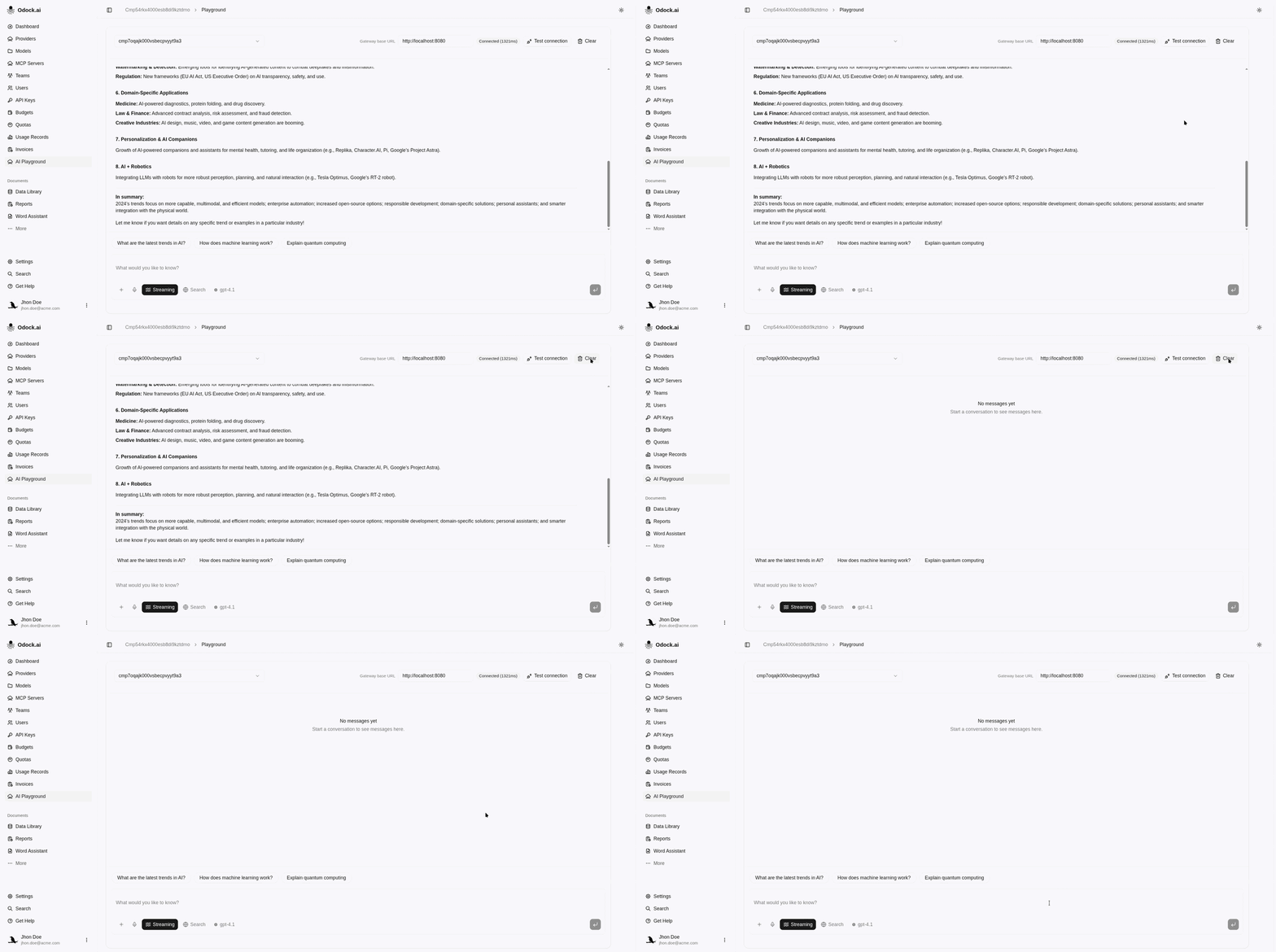
Start Over
Click Clear to remove the current conversation.
Change the API key, model, gateway URL, or response mode.
Send another test message.
If A Request Fails
If the connection fails, check the gateway URL and make sure the runtime gateway is running.
If no models appear, check that the selected API key has model access.
If authentication fails, check that the API key is active and allowed to use the selected model.
If the model fails, try another model or ask an organisation manager to review the model configuration.