

Blocklist & Threat Actors
How manual and automatic blocks work, what they match on, and how to investigate a repeat offender.
Blocklist & Threat Actors
A block stops a sender before request work starts. Odock checks blocks immediately after authentication, before routing, upstream calls, or cost.
What A Block Matches On
A block carries up to three selectors:
| Selector | Matches |
|---|---|
| Fingerprint | A stable identifier derived from the sender's request characteristics |
| API key | A specific virtual API key |
| IP address | A specific source IP |
A request is blocked when any non-empty selector on an active block matches. Blocks are organisation-scoped and affect only your organisation traffic.
Manual Blocks
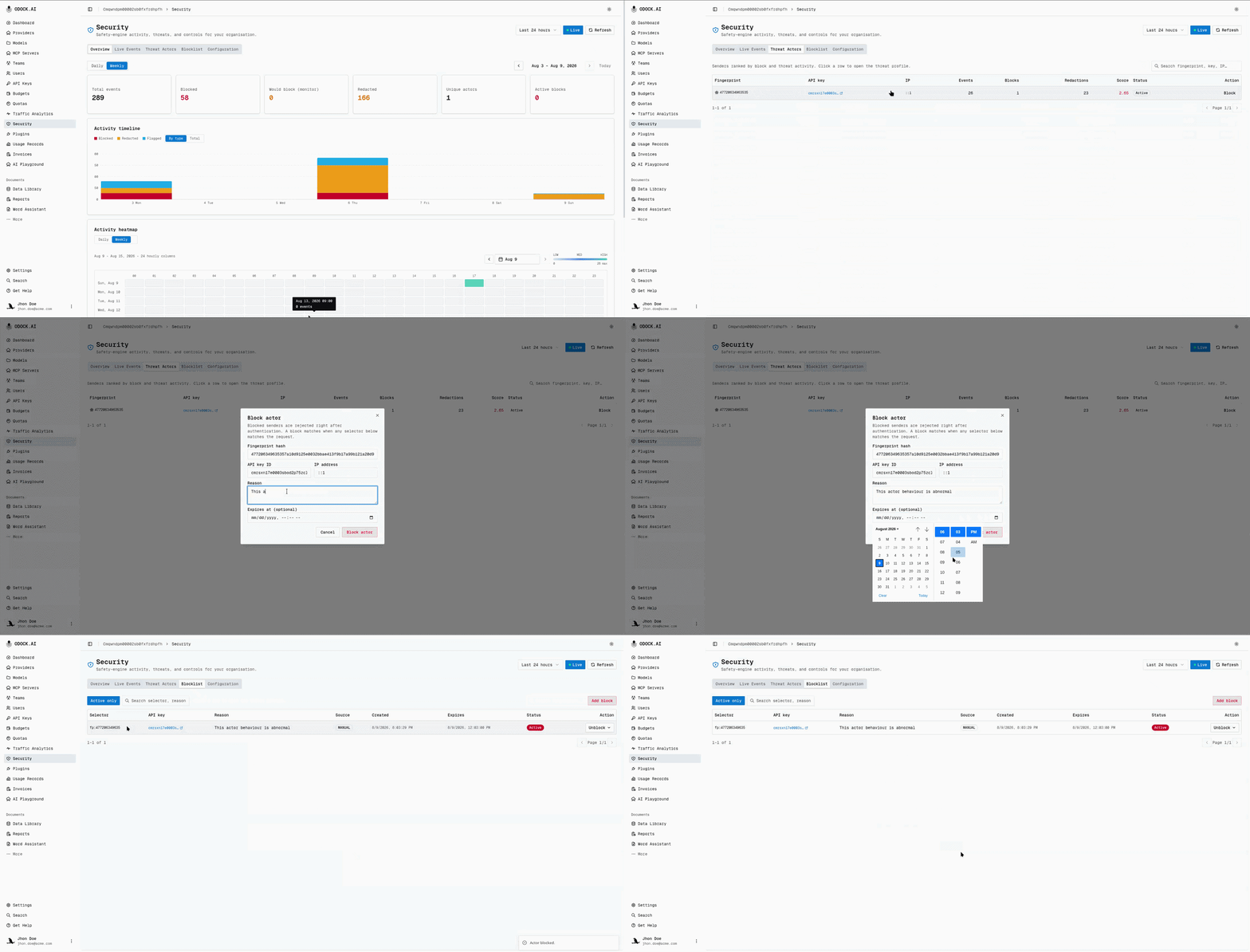
Create manual blocks from Blocklist → Add block or the Block action on a Live Event or Threat Actor row. Add a reason and optional expiry. Blocks and unblocks take effect immediately.
Automatic Blocks
When a sender's cumulative session score crosses the organisation auto-block score, SafetySec creates a durable block labeled Auto. This happens only in enforce mode. Monitor mode never auto-blocks. See Policy Configuration.
Unblocking
Unblock from the Blocklist or from a Threat Actor's profile. Two options are offered:
| Action | Effect |
|---|---|
| Unblock only | Lifts the block. If the sender's score is still above the auto-block threshold, an automatic block can re-fire on their next flagged request. |
| Unblock & reset threat score | Lifts the block and clears the sender's rolling session score, so an automatic block does not immediately re-trigger. |
Use score reset for confirmed false positives. Use unblock-only when you still want to watch the sender.
Threat Actors: Reading A Profile
The Threat Actors tab groups signals by sender fingerprint, so repeated behavior appears as one row instead of scattered events. A profile includes:
- total events, blocks, and redactions for that sender
- current session score
- a radar of peak severity by module (which kind of risk this sender trips most)
- a breakdown of reasons and actions
- an activity timeline
- the most recent evidence entries
Use the profile to distinguish scripted attacks from noisy legitimate traffic before blocking.
Investigation Workflow
For the full walkthrough, see Investigate and block a suspicious sender.