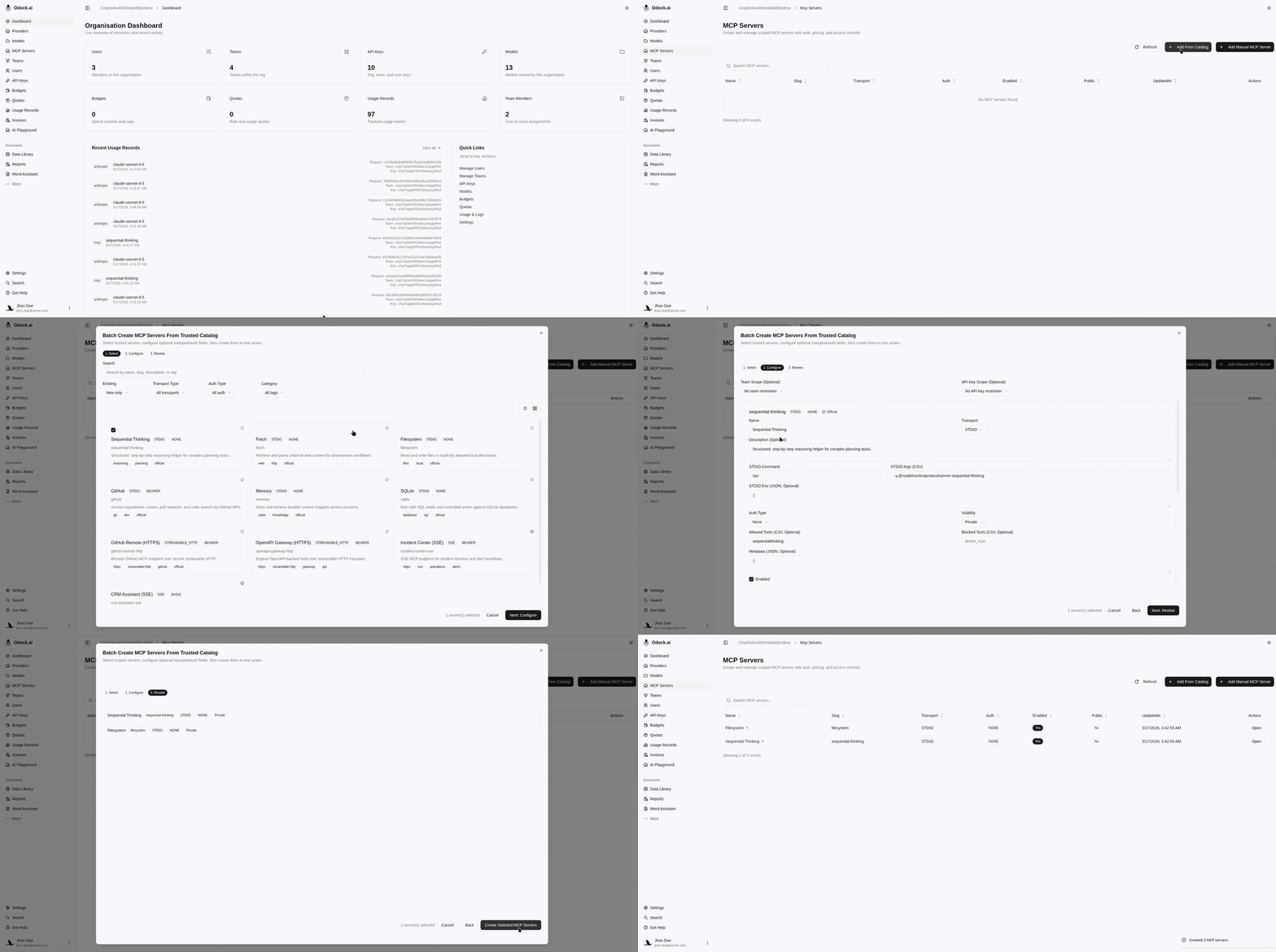

Add from catalog
Import trusted MCP servers and configure them before production use.
Add from the trusted catalog
Use the trusted catalog when the tool server is listed.
The catalog provides a starting point. Before production use, still review MCP authentication, MCP security, and MCP pricing.
Open your organisation in Odock.
Go to MCP Servers.
Click the catalog or batch create action.
In Select, search by name, slug, description, or tag.
Filter by existing status, transport type, auth type, or category.
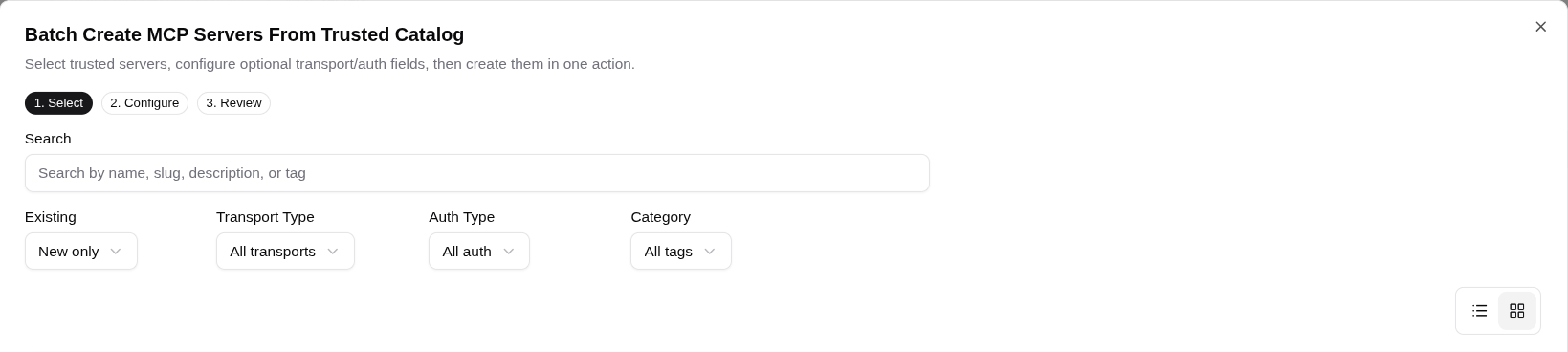
Select one or more new MCP servers.
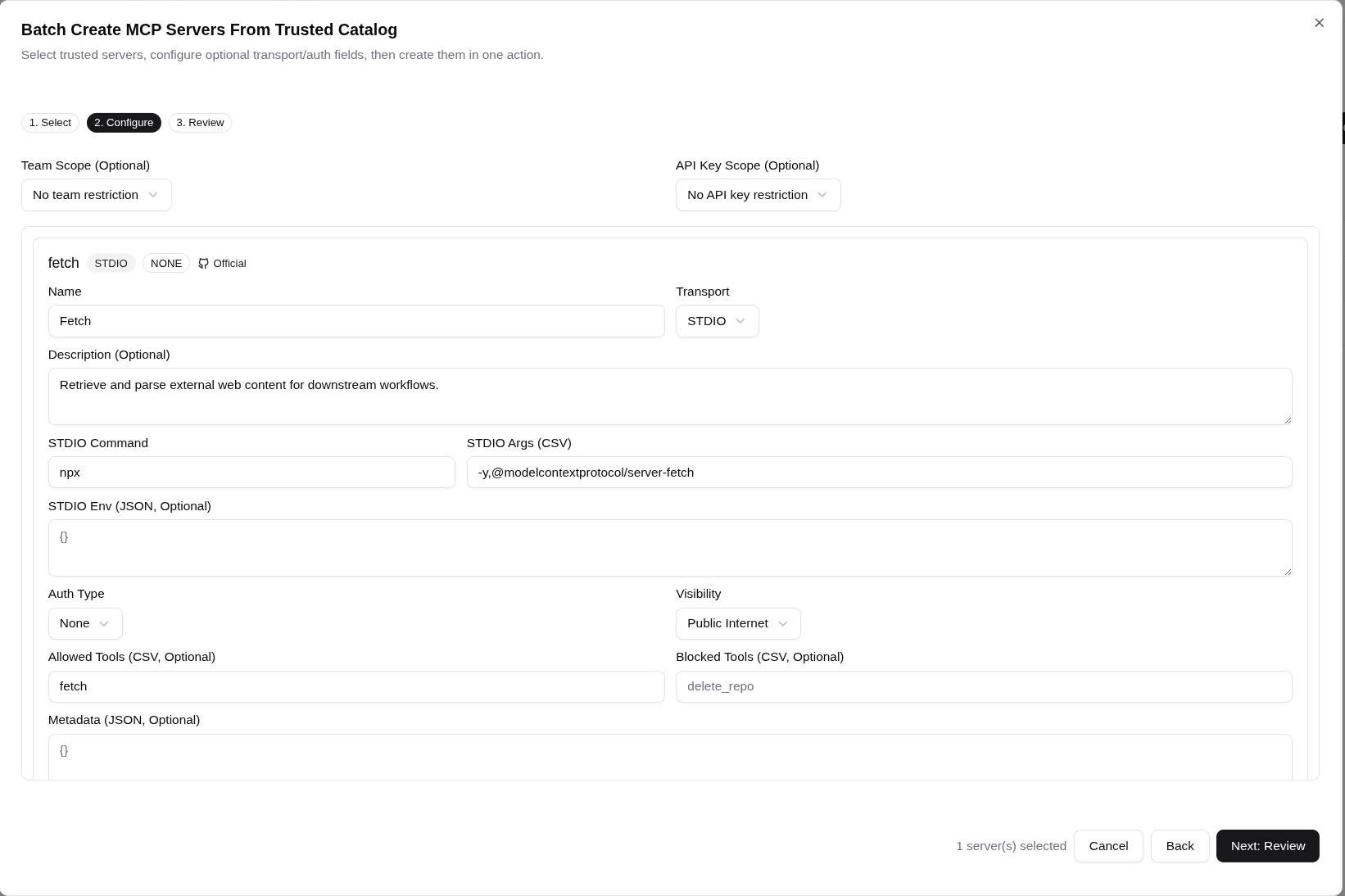
Click through to Configure.
Optionally set Team Scope or API Key Scope.
For each selected server, review name, description, transport, endpoint or STDIO settings, auth type, auth config, enabled status, public internet flag, allowed tools, blocked tools, and metadata.
Use the transport pages when reviewing server behavior: Streamable HTTP transport, SSE transport, and STDIO transport.
Review the final step.
Create the selected MCP servers.