

Automatic Odock Catalog Availability
Control whether Odock Catalog models are automatically available per provider, and resolve duplicates when you deliberately want two entries.
Automatic Odock Catalog Availability
By default, Odock Catalog models approved for all organisations appear in Batch Create for matching active providers. No sync or activation is required. Your organisation does not own these entries; it sees them beside entries it synced itself.
The Use Odock's Catalog Setting
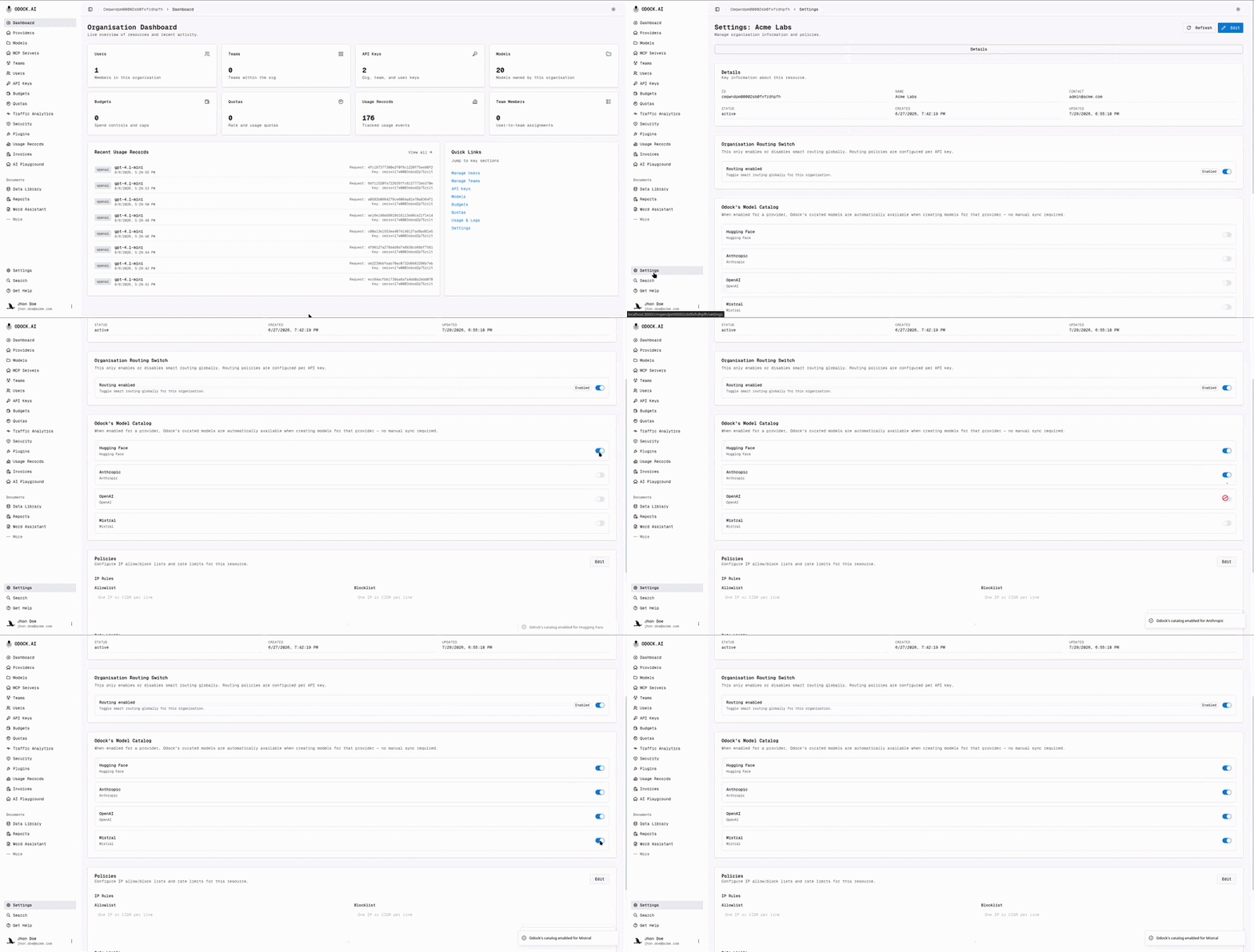
Control this per provider with Use Odock's Catalog. It is on by default.
Open your organisation workspace, then Settings.
Find the Odock's Model Catalog card.
Each configured cloud provider has a switch. Turn it off to hide Odock Catalog entries from Batch Create for that provider.
| Setting | Effect on Batch Create |
|---|---|
| On (default) | Approved Odock Catalog models appear for that provider beside your synced entries. |
| Off | Only your synced or manually added entries appear. Odock Catalog models appear only after you sync them yourself. |
Turning the setting off does not remove existing model records. It only changes future Batch Create options. Local providers (vLLM, Custom) have no Odock Catalog, so the setting has no effect.
Why This Exists
Earlier, making an Odock Catalog model available required syncing it into your organisation catalog and marking it available. If the model was already automatic, Batch Create showed both the global entry and your synced copy. Leave this setting on and skip Odock Catalog sync unless you need a custom copy or disabled automatic availability.
Resolving A Duplicate
You can still create two entries for the same upstream model, for example Odock default pricing plus client-specific pricing. When you make a synced entry available, the Model Catalog asks you to choose:
Open Models in your organisation, then the Model Catalog tab.
Select one or more of your organisation's own synced catalog rows and click Make available to organisation.
If a selected row matches an automatic Odock Catalog model by provider and model id, Resolve duplicate models opens. Rows with no match become available immediately.
Choose a resolution for each colliding row:
| Option | Result |
|---|---|
| Replace (default) | Show only your organisation's version in Batch Create. |
| Keep both | Show your version beside the Odock Catalog entry. Odock suggests a display name such as gpt-4.1-openai; edit it before applying if needed. |
Click Apply.
A row kept beside a global entry is tagged Alongside Odock in Availability.
Keep both changes only the display name shown in Batch Create. The provider model id, such as gpt-4.1, stays the same. If you create records from both entries, you get two Odock model records pointing at the same upstream slug under different names. See Add a variant model.
Continue With
- Syncing Into Your Organisation — when and how to sync in the first place.
- Add models from the catalog — turning catalog entries into model records.
- Add a variant model — creating a second model record for the same upstream slug.