

Open Grafana and choose the right surface
Sign in to Grafana, orient yourself, and decide whether to start with metrics, traces, or logs.
Open Grafana and choose the right surface
Use this tutorial when you have LGTM access but are not yet sure where to start an investigation.
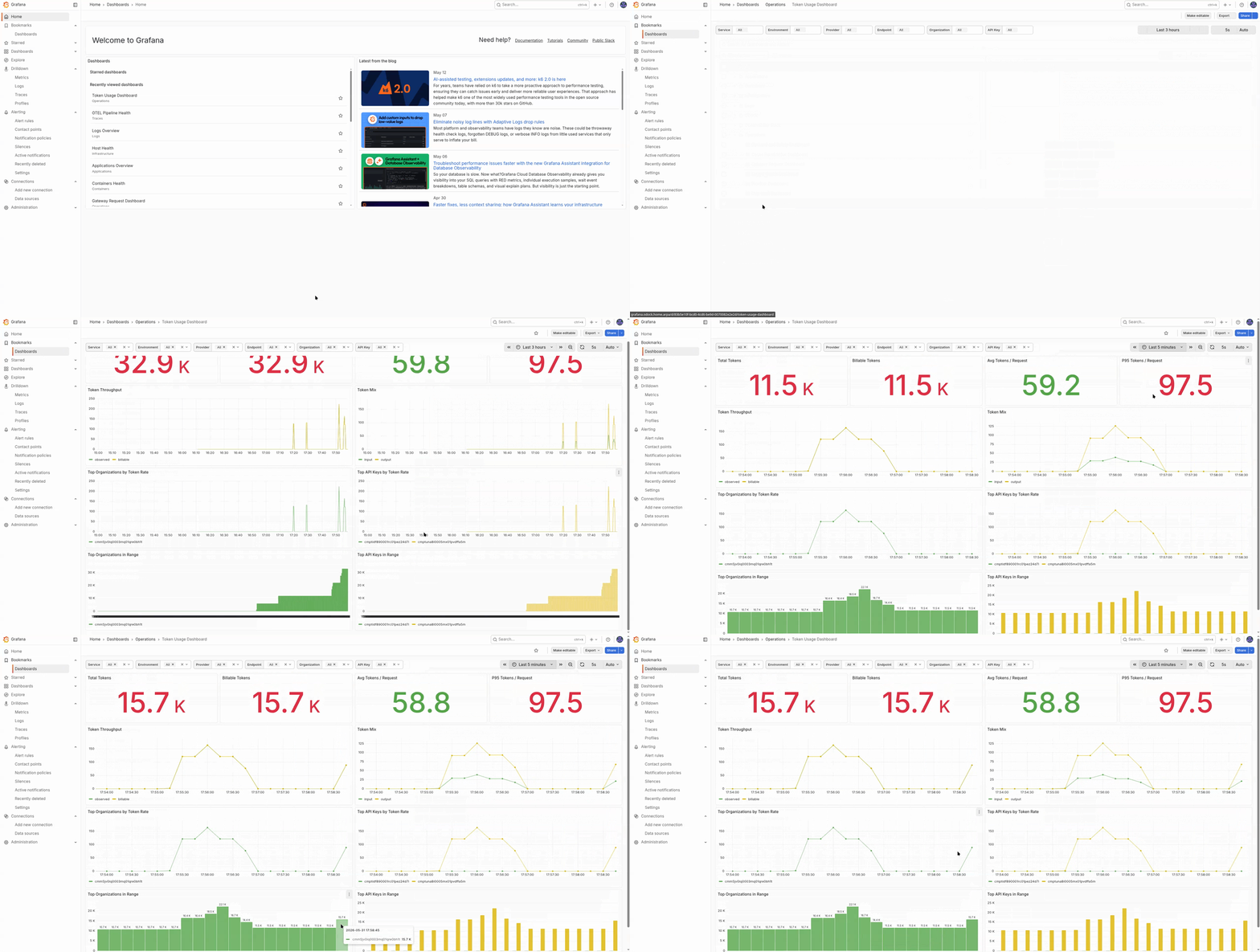
Open the Grafana URL provided by your deployment owner.
In the default compose setup this is http://127.0.0.1:3001, but your company may expose a different hostname.
Sign in and open the home page.
Confirm which folders are visible to your role. Common folders are Operations, Logs, Traces, and sometimes Organizations.
Set the global time range before opening dashboards.
Use the incident window if one is known. For active issues, keep auto-refresh enabled.
Choose the first surface based on the question you need to answer.
| If you need to know... | Open first |
|---|---|
| Is the gateway or provider slow? | Operations -> Gateway Request Dashboard or Provider Dashboard |
| Did a specific request fail? | Usage Records first, then traces or logs |
| Are traces reaching Tempo? | Traces -> OTel Pipeline Health |
| Do I need raw gateway evidence for one request? | Logs or Grafana Explore with Loki |
| Is this one organisation or the whole deployment? | Organizations Overview if your role can access it |
Open one Operations dashboard and verify that data is loading for the selected window.
If panels are empty, confirm the time range first, then check with a platform operator whether the stack is running and whether your role has access to the right data sources.
What To Remember
| Surface | Best for |
|---|---|
| Metrics dashboards | Trend, health, rate, latency, error ratios |
| Traces | One request path through the gateway |
| Logs | Structured request-by-request evidence |
| Usage Records | Exact request accounting and audit fields |
Continue with Investigate one request across usage, traces, and logs.