

Create a budget
Add a spend ceiling from the Budgets page.
Create a budget
Use this workflow for organisation, team, user, or API-key spend control.
Open your organisation workspace.
Open Budgets from the sidebar.
Click Add New Budget.
Enter a budget name.
Choose Owner Type: Organisation, Team, User, or API Key.
Select the team, user, or API key when the owner type requires it.
In Schedule, set start date, timezone, period, rollover, and optional end date.
In Limits, choose currency and enter Amount (USD).
Select threshold percentages if you want warning points.
Keep Active checked if the budget should enforce immediately.
Create the budget.
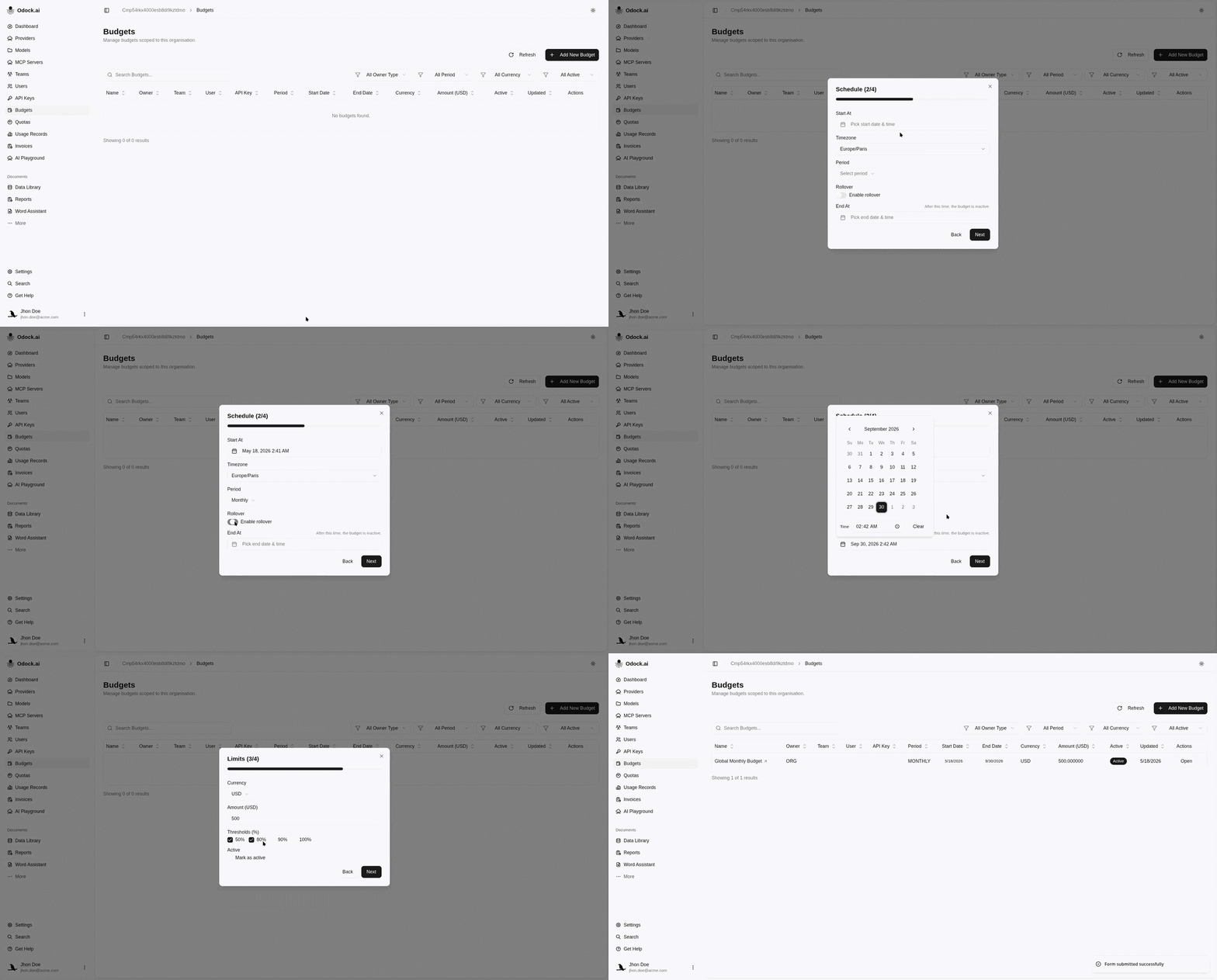
In this example, we created a monthly budget for the entire organisation that ends in September.
Add a weekly organisation budget
You can also define a weekly budget to avoid overspending before the monthly organisation budget is exhausted.
Open Budgets.
Click Add New Budget.
Name the budget Global weekly budget.
Set Owner Type to Organisation.
Choose the start date. For a clean weekly schedule, pick the Monday when this budget should begin.
Set Period to Weekly.
Do not set an end date if the weekly budget should keep applying every week.
Enter the weekly amount and keep Active checked.
Create the budget.
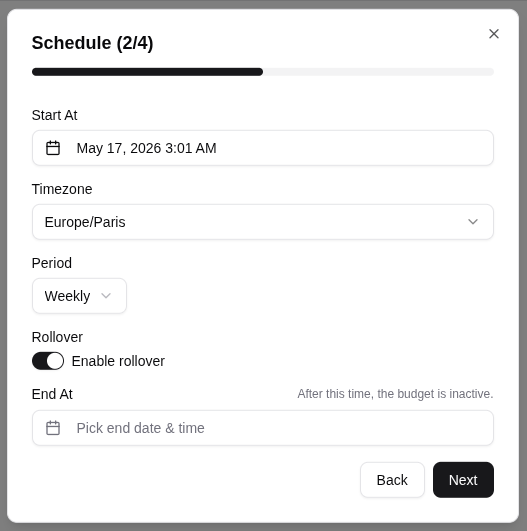
Each request in the organisation must comply with both the monthly and weekly budgets.
If the weekly limit is reached, requests are blocked even if funds remain in the monthly budget. The same applies in reverse: if the monthly budget is exhausted, requests are blocked even when the weekly budget still has remaining funds.