

Usage Records table
Filter, search, sort, and open individual gateway requests.
Usage Records table
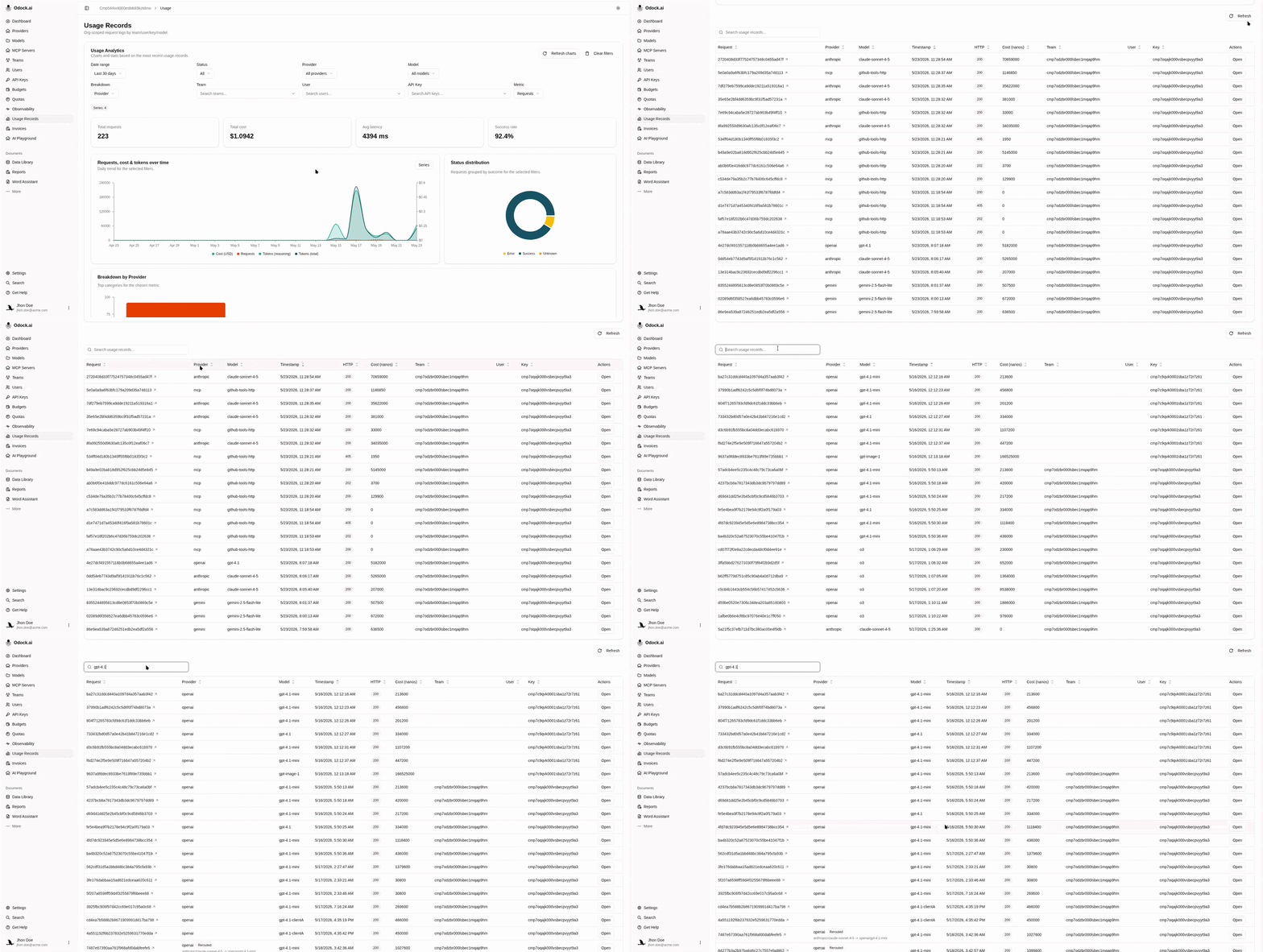
The table below the analytics card lists individual requests. Each row links to a detail page for that call.
Columns
| Column | Reads |
|---|---|
| Timestamp | When the request completed. |
| Request | Gateway request id — the same id returned in the response headers. |
| Provider | Resolved provider. |
| Model | Display name of the model that served the request. |
| API Key | The virtual API key that signed the request. |
| Team / User | Owning team or user when the key is scoped to one. |
| HTTP Status | Final status returned to your application. |
| Latency | Total wall-clock latency in milliseconds. |
| Tokens | Billable tokens. |
| Cost | Cost in USD. |
Sort the table by clicking a column header. Filters from the analytics card apply to the table as well — they share state.
Workflow
Choose a Date range and narrow the filters until the slice you want is in view.
Sort by Timestamp descending to find the last calls, or by Cost to find the most expensive ones.
Click a row to open the record detail page.
Where Else This Table Appears
The same table is embedded with a prefilled filter on:
- API Keys — the key detail page shows requests attributed to that key. See Monitor an API key.
- Budgets — the budget detail page lists requests counted against the active window. See Monitor a budget.
- Quotas — the quota detail page lists requests counted toward the metric window. See Monitor a quota.
Tips
Paste the request id from an application log into the Search field to jump straight to that call — useful when a user reports a problem and you only have the id.
Records appear with a small delay after the request finishes. If a fresh request is not in the table yet, press Refresh above the table.