

Users
Understand user roles, statuses, enrollment, user detail pages, and user-owned governance resources.
Users
Users are the people who sign in to Odock. They receive an organisation role, can belong to teams, can own user-scoped virtual API keys, and appear in usage and cost views when their credentials or ownership scopes are involved.
Concept
A user record answers four questions:
- Who is this person?
- Which organisation do they belong to?
- What role do they have in that organisation?
- Which teams, keys, usage records, budgets, and quotas are related to them?
A user can belong to multiple teams. Team membership is separate from the organisation role. For example, a person can be a manager for one team and a regular member of another team.
Organisation-Facing Roles
Odock uses roles to decide what a signed-in person can see and change in the UI.
| Role | Use it when | In the UI, this usually means |
|---|---|---|
| Organisation Admin | The person is responsible for the whole organisation workspace | They can manage organisation users, teams, settings, credentials, budgets, quotas, access, and usage review |
| Manager | The person is responsible for assigned teams | They can work in team-scoped areas and review the people and resources connected to their teams |
| User | The person needs governed access but should not manage the workspace | They can use permitted self-service and visibility workflows |
Avoid giving broad roles just to make a one-off task easier. Prefer team membership, team-scoped API keys, and scoped budgets or quotas when the work belongs to a specific group.
User Status
| Status | Meaning | Typical action |
|---|---|---|
PENDING | The user has not completed activation or is waiting for approval | Review the account or guide the user through enrollment |
ACTIVE | The user can use the UI according to their role and scope | Keep memberships and ownership current |
REVOKED | The user should no longer use the organisation workspace | Review owned keys, teams, budgets, and quotas |
Revoking a user is not the same as reviewing runtime API keys. If a user owns keys or belongs to teams with active keys, review those credentials separately in Virtual API Keys.
Enrollment Flow
The recommended onboarding path is invitation-based enrollment from the Users page. It gives the organisation a clear record of who was invited, which role was assigned, and whether the invitation is pending, accepted, expired, or revoked.
Users Page
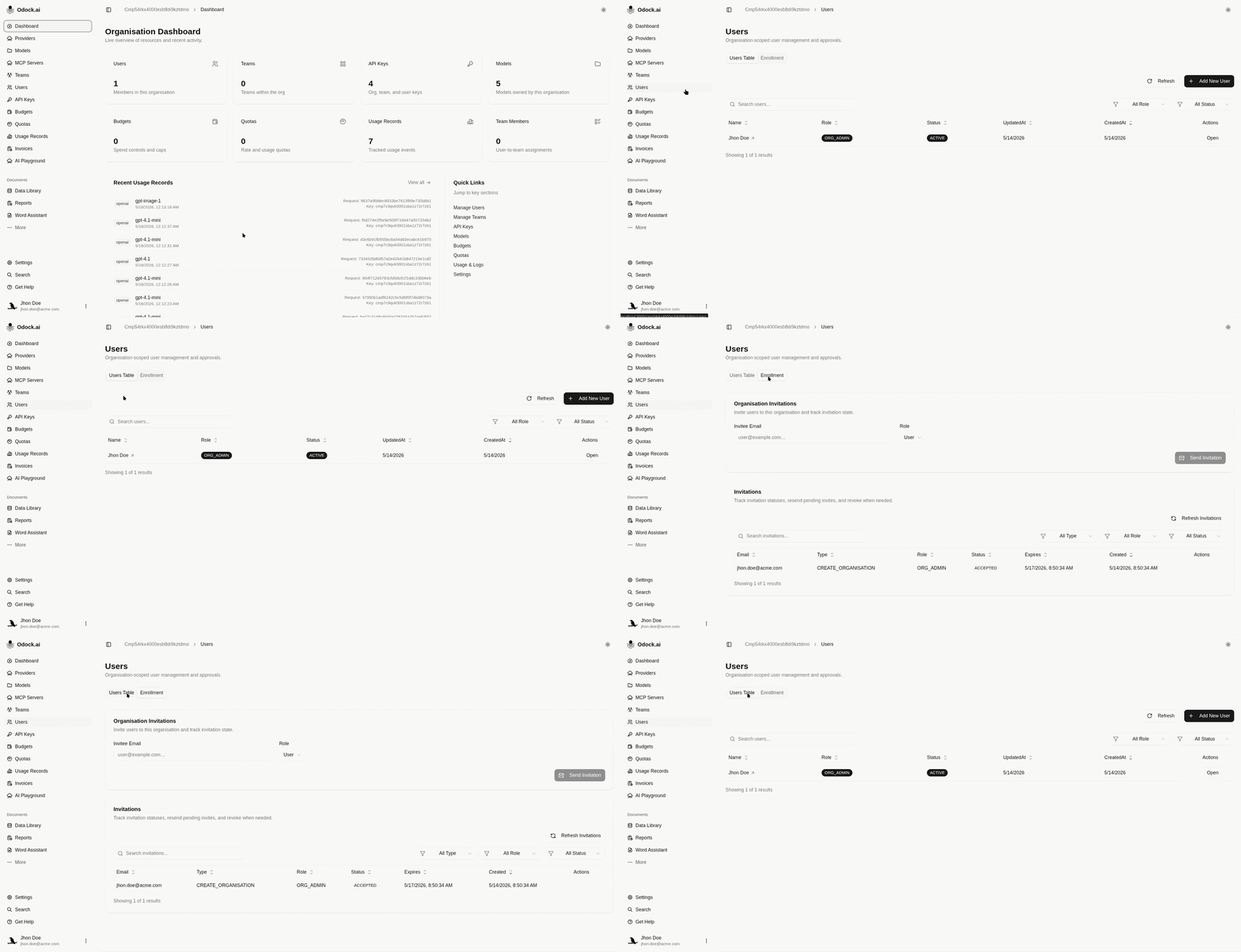
Open Users in the organisation sidebar. The page has two tabs:
- Users Table: review existing users, filter by role or status, open user details, and approve or decline pending users when available.
- Enrollment: invite users, track invitations, refresh invitation status, resend pending invitations, and revoke invitations when needed.
User Detail Page
Open a user from the table to review the full user-management context.
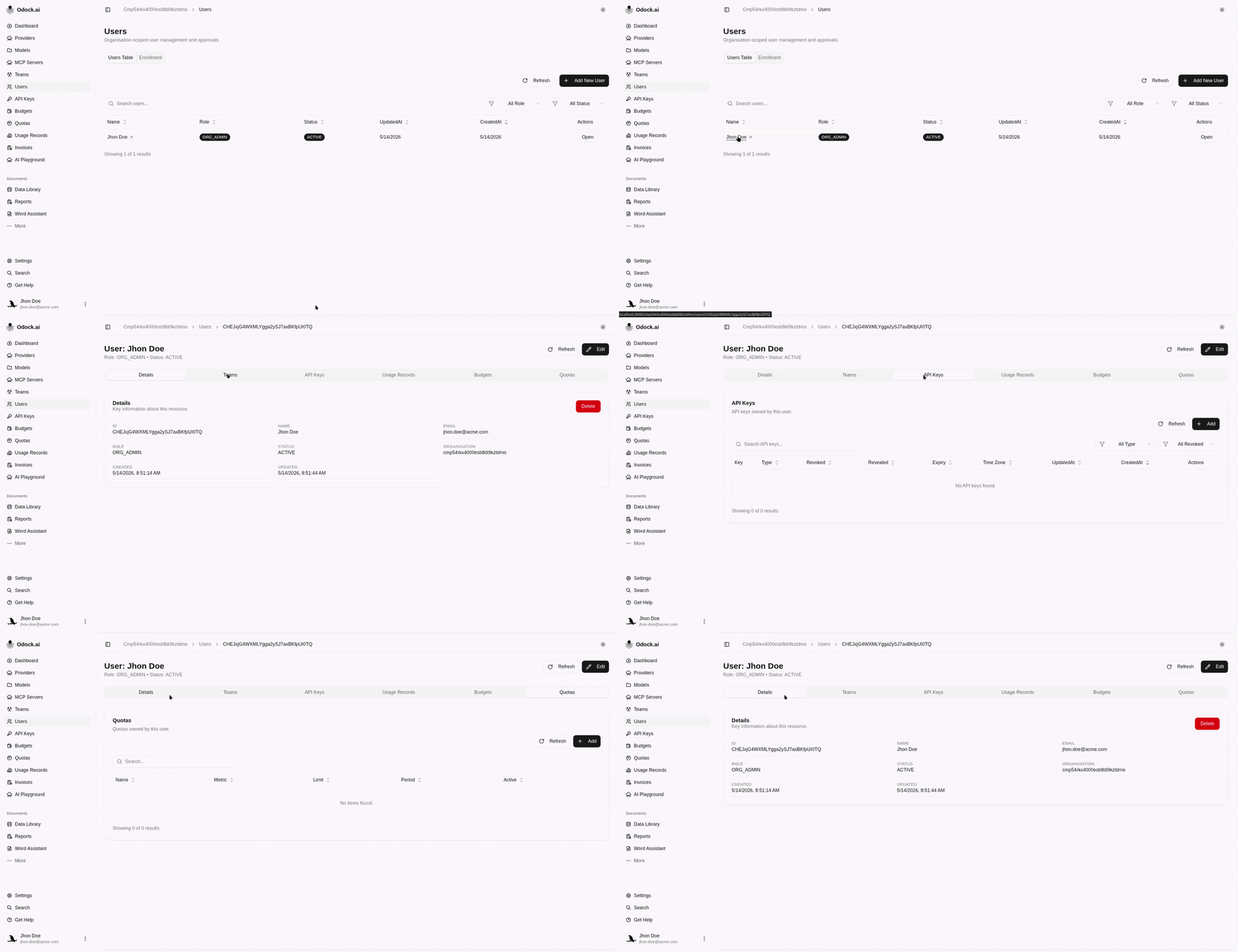
The user detail page shows:
- Profile fields: ID, name, email, role, status, organisation, created date, updated date.
- Teams: teams this user belongs to.
- API Keys: user-scoped virtual API keys owned by this user.
- Usage Records: gateway activity attributed to the user.
- Budgets: budgets owned by this user.
- Quotas: quotas owned by this user.
Tutorials
- Invite a user
- Accept an invitation
- Resend an invitation
- Revoke an invitation
- Review users
- Approve or decline a pending user
- Add a new user
- Edit a user
- Add a user to a team
- Review user-owned API keys
- Review user usage, budgets, and quotas
Practical Guidance
- Prefer invitation enrollment for normal onboarding.
- Keep organisation-admin access limited to people who operate the whole workspace.
- Use teams to represent ownership groups, not just mailing lists.
- Use manager membership for team responsibility.
- Review user-owned API keys when a user changes role or leaves.
- Review budgets and quotas whenever a user starts a new high-volume workflow.
- Use usage records to validate whether access is actually being used.