

Accept An Invitation
Accept an organisation invitation, sign in, and complete the invited profile.
Accept An Invitation
Use this tutorial when you received an Odock organisation invitation by email. The invitation must be opened with the same email account that was invited.
Before You Start
You need:
- The invitation link sent by your organisation.
- Access to the invited email account.
- A GitHub sign-in that matches the invited email.
If the signed-in account does not match the invited email, Odock shows a wrong-account state and asks you to sign out before continuing.
Accept The Invitation
Open the invitation link from the email.
Review the invitation page before signing in. Check the invited email, organisation, role, status, and expiry.
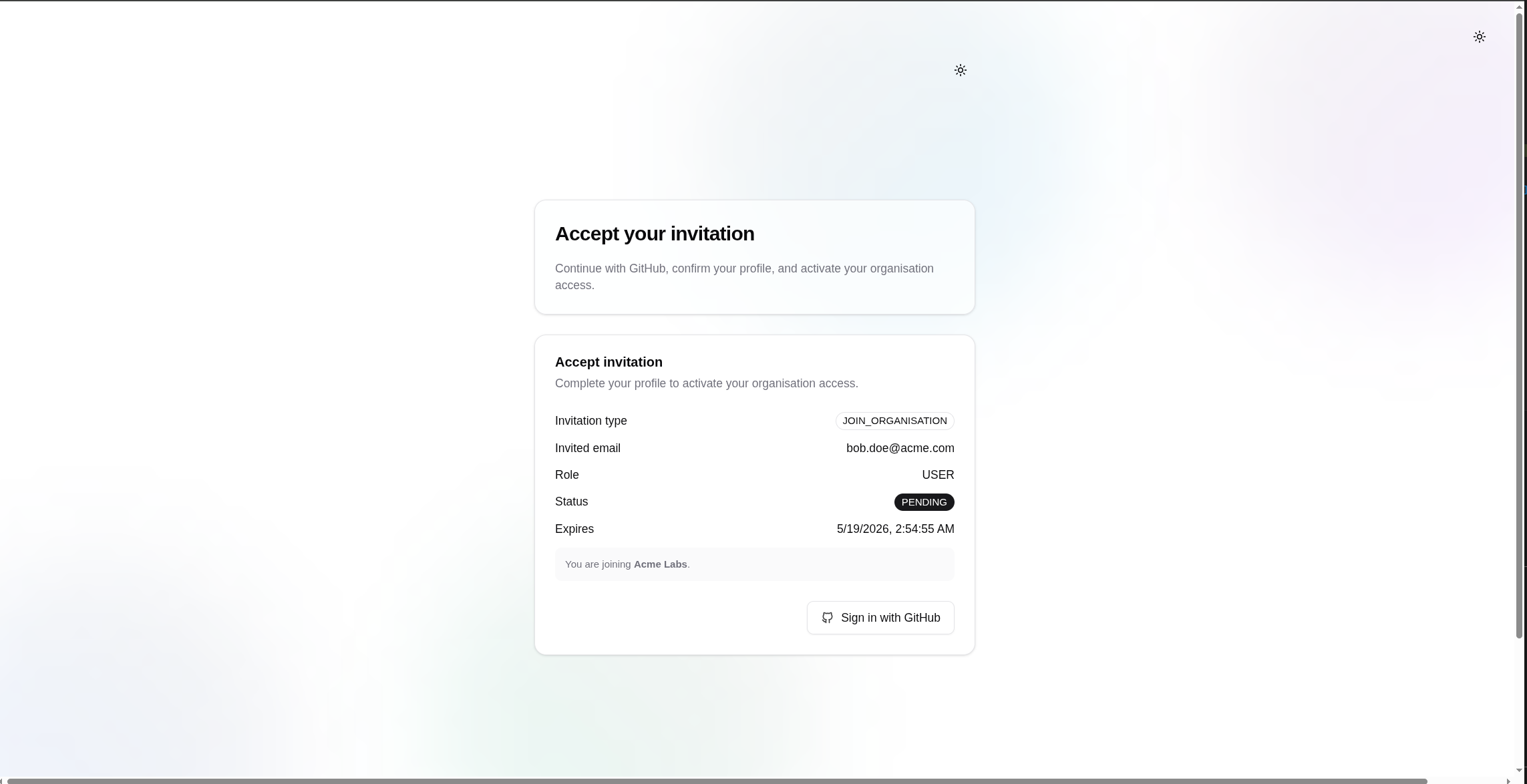
Click the sign-in action and authenticate with the invited email account.
After login, review the invitation details again and confirm that you are signed in with the invited email.
Fill the requested profile information.
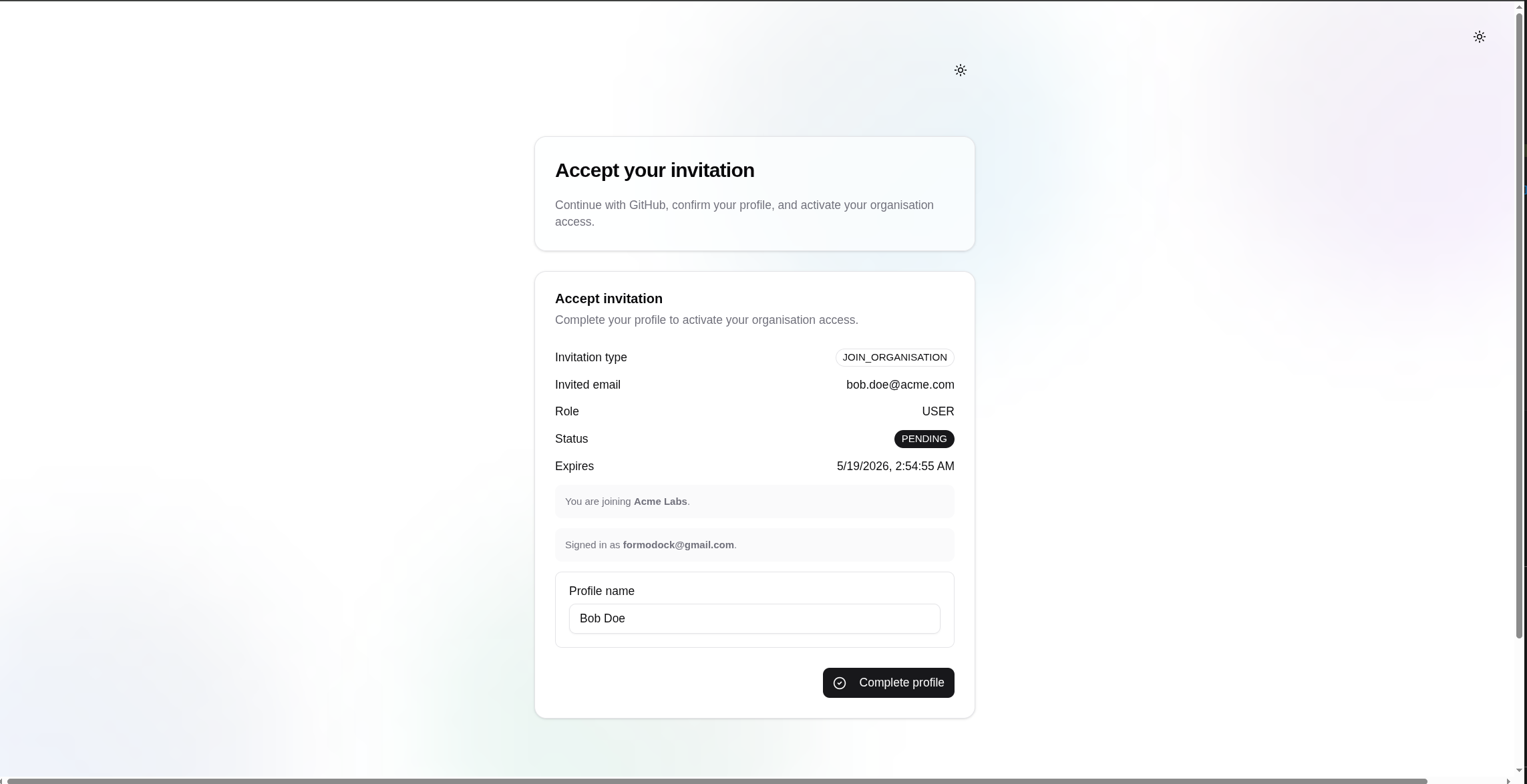
Complete the invitation.
Confirm that Odock redirects you to the organisation dashboard.
After completion, your account becomes active in the organisation with the role assigned by the invitation.
What Happens Next
The organisation can now review your account in Users and add you to teams if needed. Team membership is managed separately from invitation acceptance. See Add a user to a team and Teams.
If you need runtime credentials for an application or workflow, those are managed separately through Virtual API Keys.