

Trace a request
The Traces tab — a per-request table for cross-surface investigation.
Trace a request
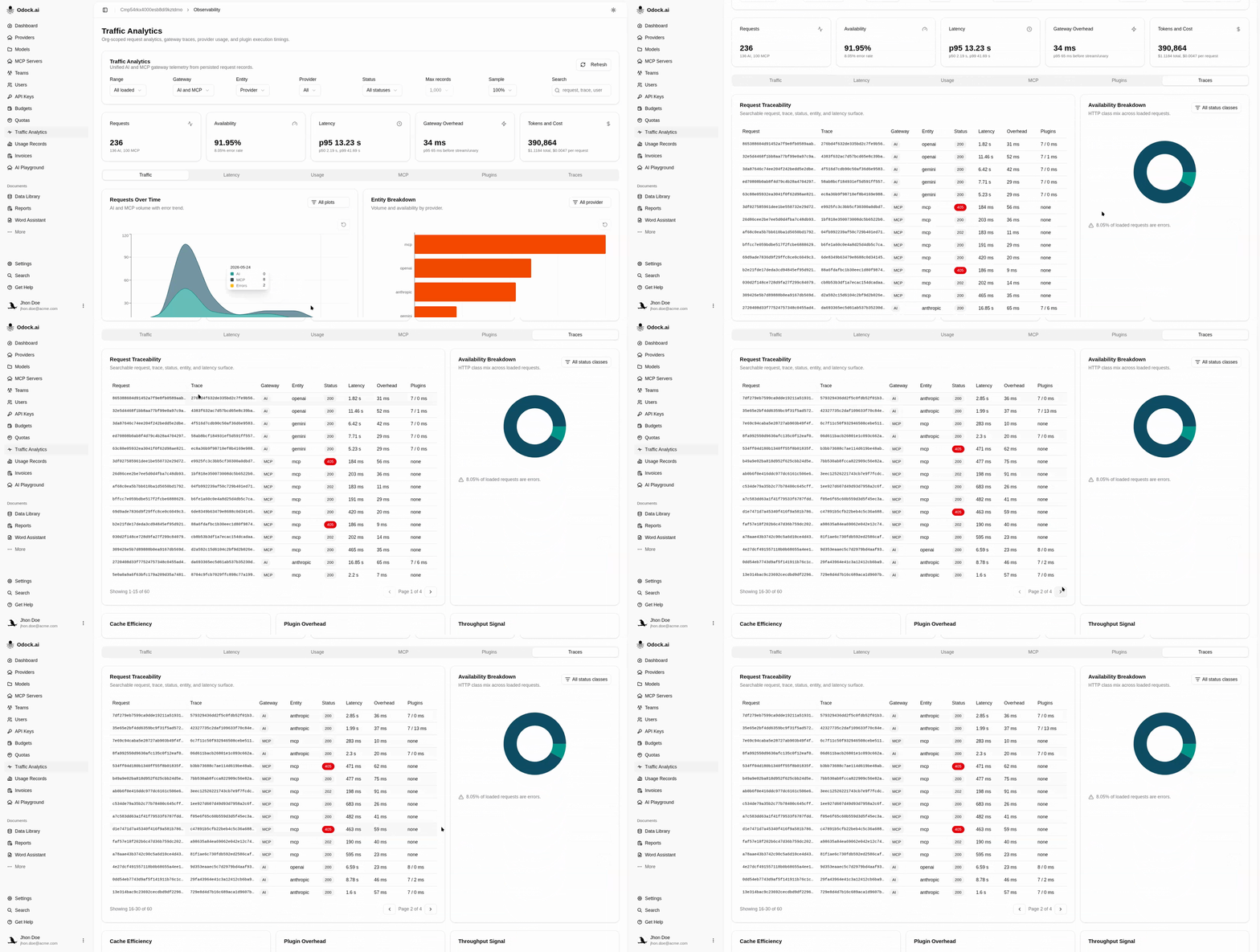
The Traces tab is the bridge between the aggregated charts and the per-request audit on the Usage Records page.
Visualizations
| View | Answers |
|---|---|
| Request Traceability | Which specific requests look bad? Paginated table of the most recent records in the slice. |
| Availability Breakdown | What kind of errors are we seeing? Donut of HTTP class share. |
Columns
| Column | Reads |
|---|---|
| Request | The gateway request id. |
| Trace | The trace id, when platform tracing is enabled. |
| Gateway | AI or MCP badge. |
| Entity | Value of the selected entity for the row. |
| Status | HTTP status with a red badge when ≥ 400. |
| Latency | Total wall-clock latency. |
| Overhead | Gateway overhead — time spent in Odock before the upstream call. |
| Plugins | Plugin count and total time for this row, or none. |
Workflow
Filter the page down to the scope you want — one team, one model, one provider.
Set Status to Errors to focus the table.
Look at Availability Breakdown — 4xx is policy, 5xx is upstream.
Sort or scan the table for outliers in Latency or Overhead.
Copy a request id from the Request column and paste it into the Usage Records search to open the full record details.
Tips
Overhead is the fastest way to find a regression that is not the upstream's fault. Filter to one model, then look for rows where Overhead is close to Latency — those are gateway-side problems.
The table is capped at the most recent rows in the slice. For full pagination over the filtered set, use the Usage Records table.